

Top 3 AI Tools for Creators
Artificial Intelligence, better known as AI, has seemingly taken over the world—not in the manner of the movie 'The Terminator', mind you. We don’t have a T800 killer robot yelling, 'Come with me if you want to live!' Instead, we find ourselves immersed in an endless array of generative AI applications and software, ranging from chatbots like ChatGPT to image generators like MidJourney, all of which produce astounding results.

In this wild west AI landscape, with so many tools available, how do you choose? Allow me to highlight five of the top AI tools that I use for my projects, which might just help you too—or at least inspire you to create some really cool stuff!
#5 ChatGPT

It's no surprise that OpenAI's ChatGPT makes our list. I mean, did anyone truly care about AI until they caught wind of ChatGPT? It marked the dawn of the AI boom. On November 30, 2022, OpenAI unveiled a sneak peek of ChatGPT, setting off a social media frenzy as users flooded platforms with its remarkable capabilities. From crafting travel itineraries to spinning imaginative tales to coding, ChatGPT began to be utilized in various applications. An within just five days, its user base surged past the one million mark.
In case you've been living in a bunker (hiding from T-800s), ChatGPT is known to most as simply a chat bot or technically, a sophisticated generative AI language model. It enables users to input text in the form of questions or statements and provides human-like responses with astounding accuracy. Short for 'Chat Generative Pre-trained Transformer,' it signifies a significant advancement in AI technology, harnessing cutting-edge machine learning algorithms to comprehend and generate text resembling human speech.

If you’ve never used ChatGPT head on over to https://chat.openai.com/.
The great thing is that you no longer need an account to start using it and even better, if you do sign up the 3.5 version is completely free to all users. let me tell you how I use it and it may spark some ideas on how you can use it in your day to day tasks.
If you're a creator, this tool is invaluable for helping with your scripts, generating content ideas, or even writing fictional stories. Use it to check the wording in that heated email you're about to send or, better yet, to help format your resume into a professional masterpiece! The possibilities are endless.
Just keep in mind that any information you feed into ChatGPT can be used to help train future models. This usually isn't a problem, but for sensitive information, use caution—especially at work—and be sure to check your corporate AI policies.
But trust me, once you discover how to use it, you'll be using it almost daily.
#4 Runway AI
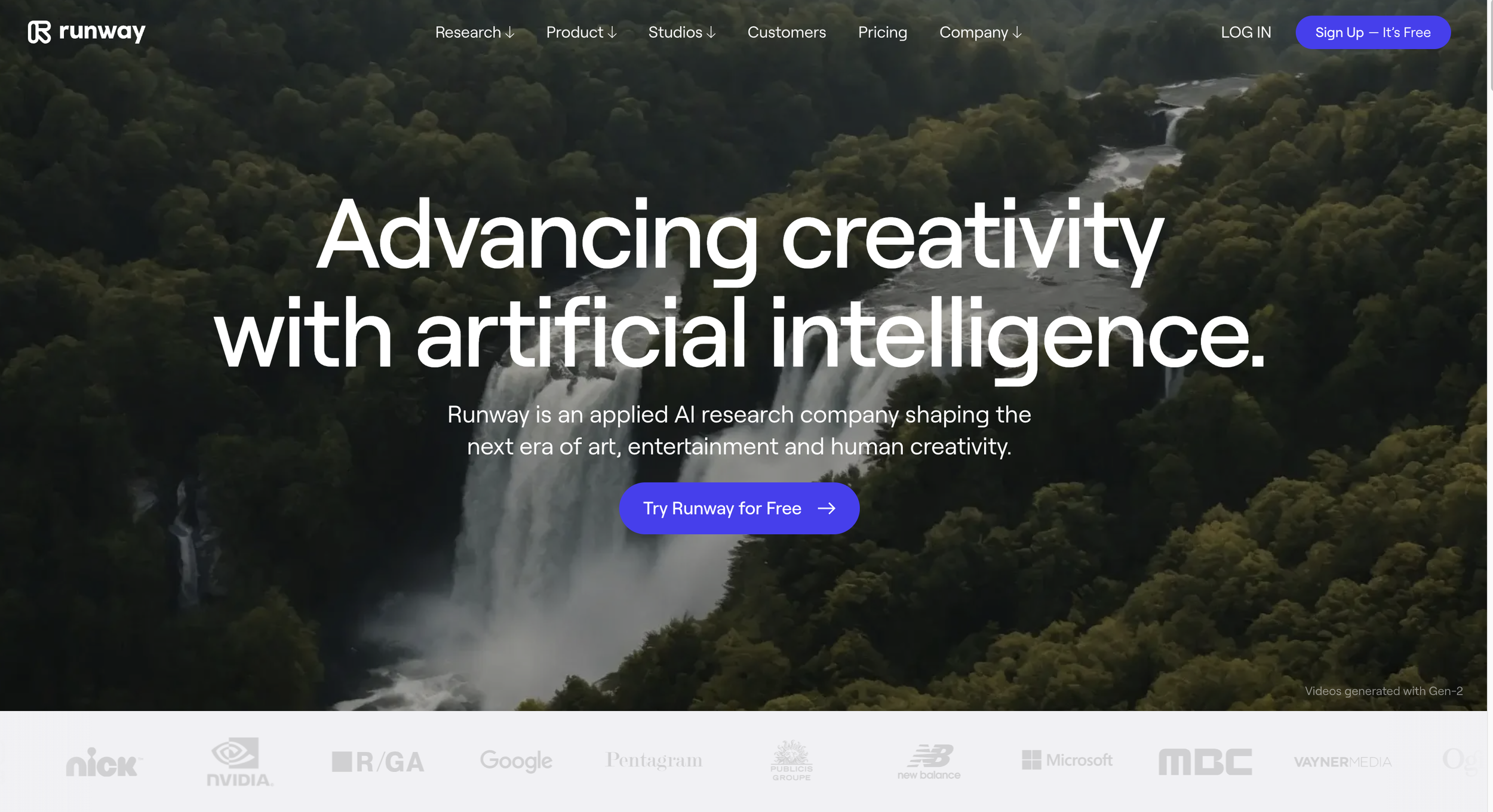
Runway AI, also known as Runway ML, takes image generation a step further by allowing you to create videos. Now, before you start thinking you're going to be the next Spielberg, keep in mind that videos are rendered in 4-second clips that can be extended to a maximum of 18 seconds. You may encounter some trial and error depending on the method you use to generate your clips, but once you get the hang of it, the results can be pretty impressive.
What's great is that Runway offers various ways to generate videos, such as text-to-video, image-to-video, or a combination of both. So, remember all those cool images you've been creating with MidJourney, DALL·E, and Stable Diffusion? You can take those images, import them into Runway, add some additional text prompts, and create really cool video clips.
Moreover, Runway provides excellent instructions and tutorials on their Runway Academy site to help you learn how to use all the various tools. Aside from their video creation options, they also offer text-to-image creation, voice-over tools, and image upscaling, allowing you to do all your creative work in one place if you like.
Runway used to highlight top videos created by its users during its beta testing phase but has since removed those. However, a search on YouTube will yield some really cool videos. You can even check out my Runway project here if you're interested in a movie about alien invasions.
#3 Gigapixel By Topaz Labs
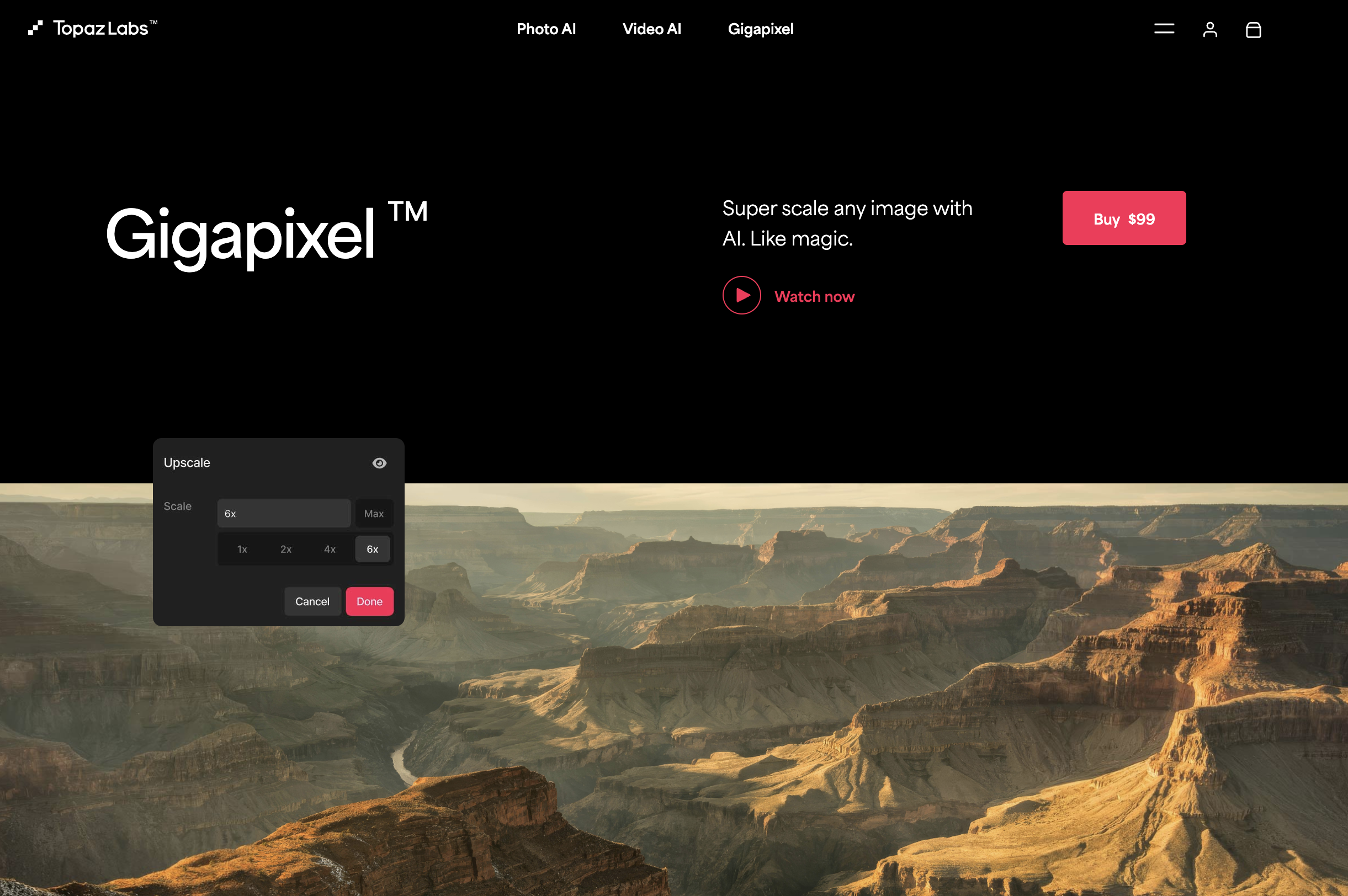
As you've seen, there are various AI image generation tools to choose from, but you'll find that most generate their images at lower resolutions to conserve compute costs. This means you're left with images at around 1024x1024 resolution. While that's not bad for thumbnails, if you plan to use the image for a wallpaper, t-shirt design, or wall art, you'll want a much higher resolution. This is where Gigapixel saves the day. You can upload your image into Gigapixel and upscale it by an astounding 600%! This isn't just blowing up the image size—Gigapixel samples your image and uses its trained AI model to make all the textures crisp, text clear, and edges non-pixelated. From my experience, it's hands down the best image upscaler on the market.
One thing to note is that Gigapixel is the one AI tool on the list that needs to run locally on your computer, meaning it has specific compute requirements. Since it performs heavy computations, especially when upscaling, you'll need a beefier processor and graphics card for smooth operation. The good news is that it's the only tool on the list that isn't subscription-based—you pay for it once and own the software for life, with free updates! That's super rare these days. And while the $100 price tag might seem a bit steep, if you're doing a lot of AI image generation or photo restoration, Gigapixel's power is unmatched.
#2 MidJourney

#1 Microsoft Co-Pilot

The Cloud: What is it and Why Does it Matter?
Many people have heard of "The Cloud," a term that has become almost synonymous with modern technology. But, what is “The Cloud”?
Many people have heard of "The Cloud," a term that has become almost synonymous with modern technology. Yet, despite its widespread use, there remains a considerable amount of ambiguity about what the cloud actually entails, especially among those outside the IT community. For IT enthusiasts and professionals, understanding the cloud is not just a matter of interest but a growing necessity. Today, we’ll delve into what cloud computing really means, explore different cloud computing platforms, and discuss the various ways cloud services can be delivered.

If you've ever used an app on your smartphone, it's likely that some part of it relies on cloud computing services. In simple terms, 'The Cloud' refers to a network of remote servers and services hosted by service providers. These services offer data storage, computing capabilities, and a broad range of functionalities, from web hosting to artificial intelligence. Instead of running processes locally on your phone or computer, these tasks are handled by servers located in data centers worldwide. This approach allows for more efficient data processing and storage, accessible from anywhere with an internet connection.

When discussing cloud computing, three major players usually come to mind: Microsoft Azure, Amazon Web Services (AWS), and Google Cloud Platform (GCP). These companies are industry leaders, offering a wide range of cloud-based services. However, it's important to remember that there are many other cloud service providers, each with unique strengths and specialties.
Microsoft Azure is known for its seamless integration with Microsoft products like Windows, Office 365, and SharePoint. It provides a comprehensive range of services, including virtual machines, databases, artificial intelligence, and IoT solutions. Azure is particularly popular among businesses that rely heavily on the Microsoft ecosystem.
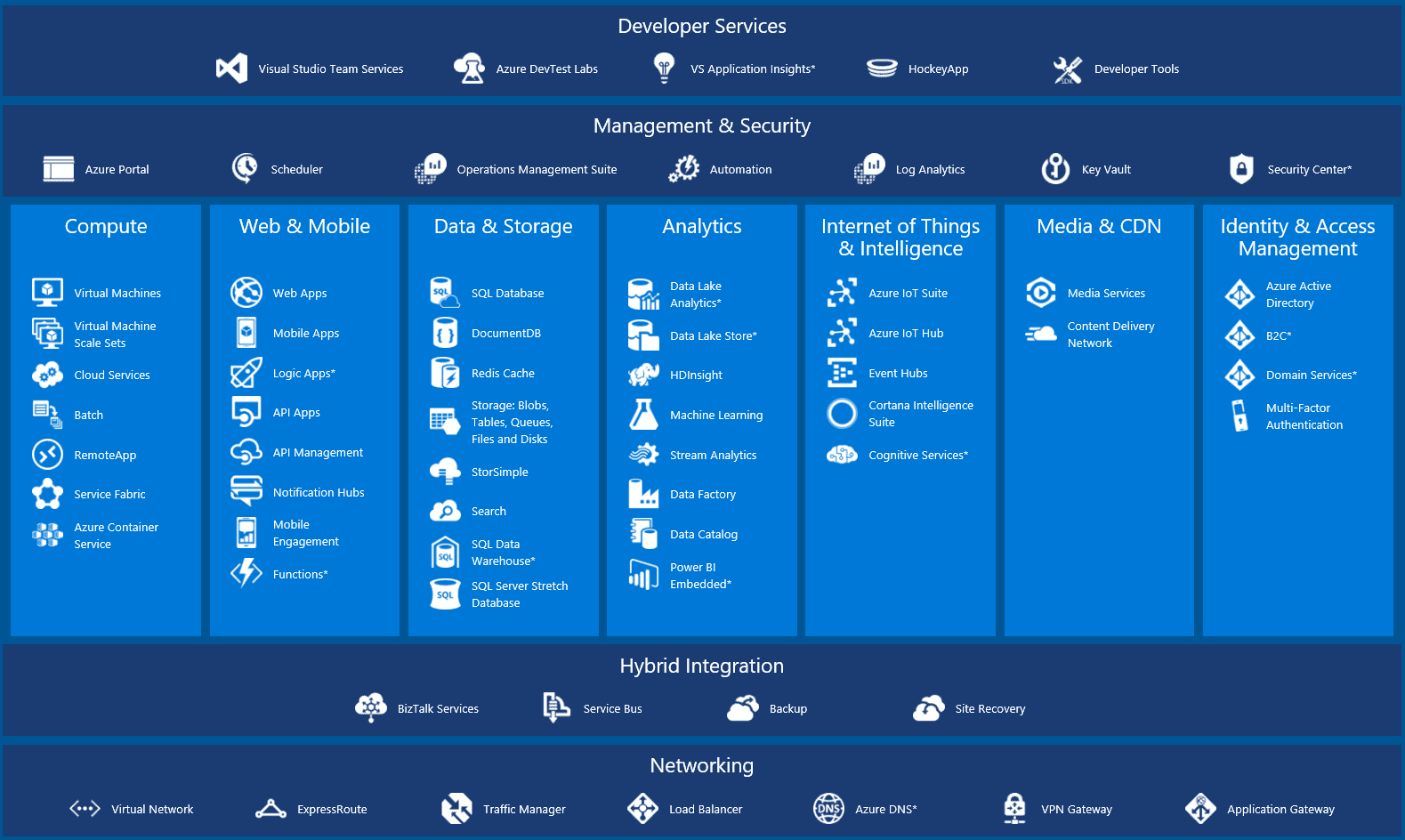
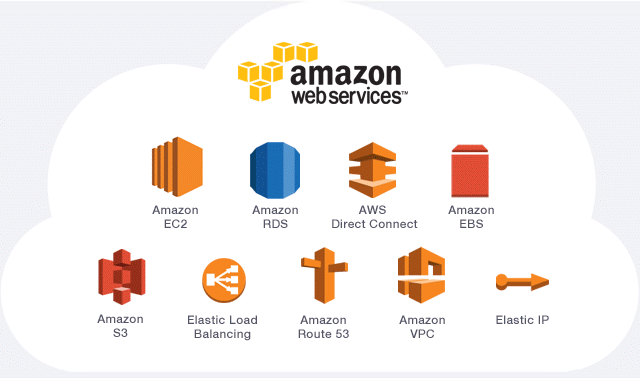
Amazon Web Services (AWS) is the largest cloud provider, offering a diverse array of services. AWS is known for its flexibility, allowing users to tailor cloud solutions to their needs. From simple storage and computing to advanced machine learning and analytics, AWS has a vast ecosystem of tools and services that cater to different business requirements.
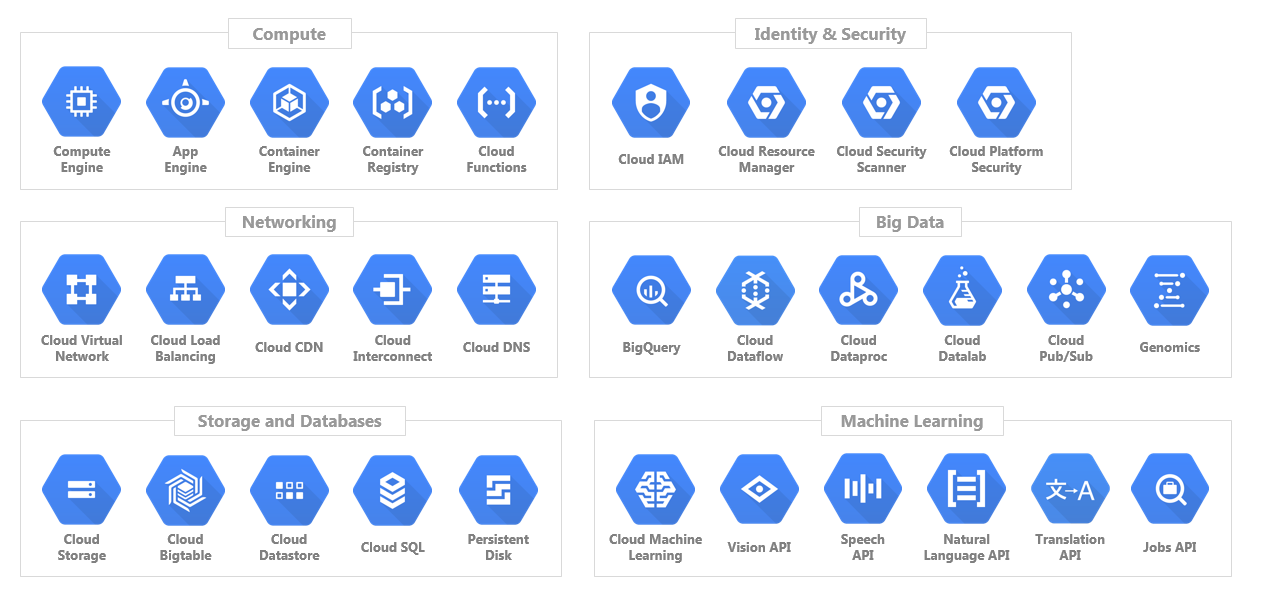
Google Cloud Platform (GCP) is recognized for its robust machine learning and data analytics capabilities. GCP offers scalable computing and storage solutions, with a focus on big data processing and AI-driven applications. Google’s experience with large-scale infrastructure underpins its cloud offerings, making it a popular choice for developers and tech-focused businesses.
While these three are the most well-known cloud service providers, there are others, like IBM Cloud, Oracle Cloud, and Alibaba Cloud, that offer a variety of services and solutions. Each cloud platform has unique features, so choosing the right one depends on your specific needs and existing technology stack.
To give you an idea of how widely adopted the cloud has become, 94% of U.S. enterprise infrastructure decision-makers have adopted at least one cloud-based solution, with nearly two-thirds prioritizing IT and operations modernization in 2023. As a result, cloud-first strategies are increasingly popular. But the surge in cloud adoption isn't the only reason to embrace a cloud-first approach. The cloud offers numerous benefits that can significantly enhance an organization's flexibility, innovation, and overall success.

Scalability: Cloud platforms let organizations easily adjust resources to match demand, reducing the risk of over-provisioning and cutting unnecessary costs.
Flexibility: With the cloud, businesses can quickly adapt to changing requirements through a wide range of services and deployment models.
Security: Cloud providers invest heavily in advanced security measures, such as encryption, firewalls, and identity management, to protect customer data and ensure compliance with industry standards. This level of security is often more robust than what individual businesses can achieve on their own. Additionally, cloud platforms offer built-in backup and disaster recovery options, helping to safeguard against data loss.
Rapid innovation and deployment: Cloud environments enable companies to experiment with new ideas and quickly develop or deploy applications, allowing them to stay ahead in a fast-paced market by tapping into a vast array of cloud-based tools and services.
These are just a few of the advantages of utilizing the cloud for various services.
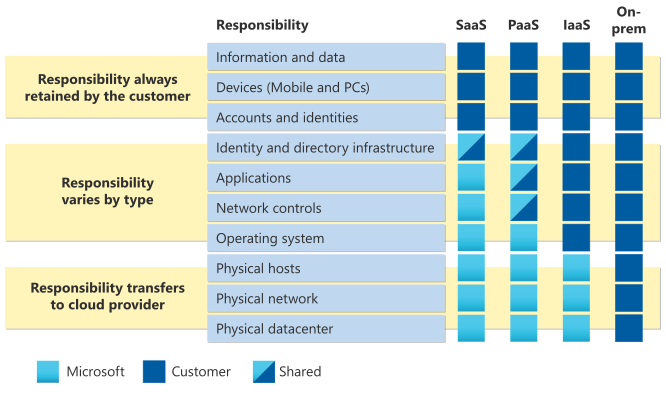
While many services and microservices are offered by various cloud providers, it's crucial to understand the different ways they're delivered. Here's a detailed overview of the primary cloud service models.
Software as a Service (SaaS)
SaaS is a cloud-based model in which software applications are delivered via the internet. Users can access these applications through a web browser without installing or maintaining them on their devices. SaaS solutions are typically subscription-based, reducing upfront costs and simplifying software management. Examples include Google Workspace, Microsoft 365, Salesforce, and Slack. SaaS is ideal for businesses seeking scalable, easy-to-use software solutions without the burden of infrastructure management.
Platform as a Service (PaaS)
PaaS provides a platform for developers to build, deploy, and manage applications without handling the underlying infrastructure. It offers tools, frameworks, and services that streamline development, allowing developers to focus on coding and innovation. Popular PaaS examples are Microsoft Azure App Service, Google App Engine, and Heroku. PaaS is a great choice for businesses wanting to create custom applications without managing servers or hardware.
Infrastructure as a Service (IaaS)
IaaS is a cloud model where users rent virtualized hardware resources like servers, storage, and networking on a pay-as-you-go basis. This model offers flexibility and control over the infrastructure without the cost and complexity of physical hardware. Leading IaaS providers include Amazon Web Services (AWS), Microsoft Azure, and Google Cloud Platform. IaaS is suitable for businesses that need scalable infrastructure with the freedom to configure resources to meet specific requirements.
Anything (AaaS)
Beyond the commonly known cloud service models like SaaS, PaaS, and IaaS, a variety of other "anything as a Service" models have emerged, illustrating the versatility of cloud computing. Today, you can find services for nearly any technology need. Function as a Service (FaaS), also known as serverless computing, allows developers to run code in response to specific events without managing servers. Another example is Video Platform as a Service (VPaaS), which offers the tools and infrastructure for building video-based applications. You can see how the cloud continues to evolve, providing solutions that meet a wide range of industry requirements.
Should You Move Everything to the Cloud?

So, now what? Should you migrate all your computing and services to the cloud? If you're like many organizations, you'll likely adopt a hybrid approach. Many companies use various cloud services while still maintaining some on-premises infrastructure. This is often due to data sovereignty concerns and the massive effort required to migrate everything to the cloud.
Additionally, some companies specialize in helping organizations migrate their data, services, and users to the cloud. This makes the transition smoother but doesn't eliminate all challenges. If you're considering the cloud, it's worth exploring how other businesses are handling their hybrid environments and seeking expert advice.
Exploring Cloud Computing for Yourself
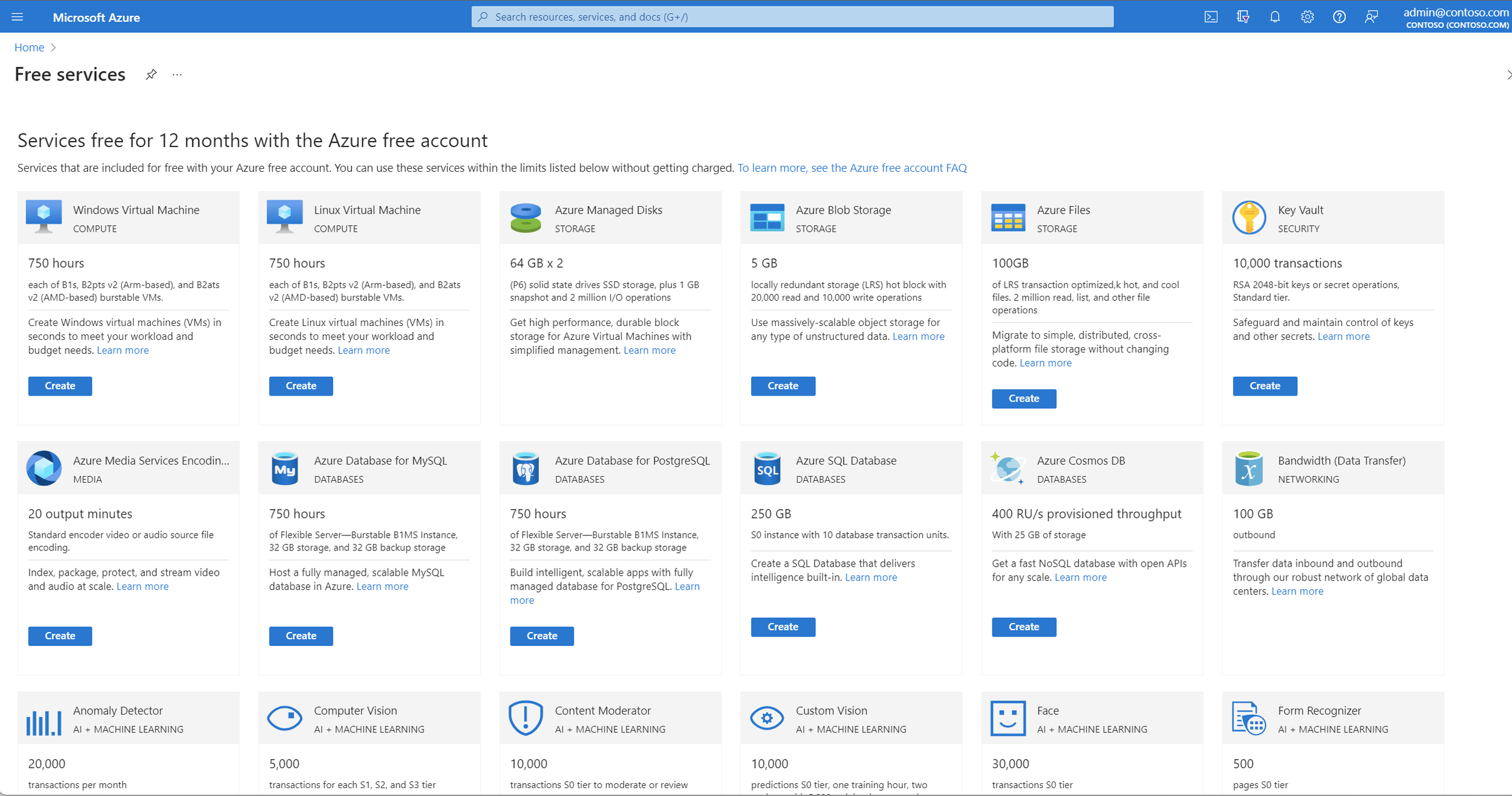
If you're a tech enthusiast like I am, you'll want to get hands-on experience with cloud platforms. I highly recommend creating an account on one of the major cloud providers to experiment with different services. You could spin up a Linux virtual machine, create a virtual network, or explore the various tools available.
Microsoft, Google, and Amazon all offer free trials for their cloud platforms, so it's easy to dive in and discover cloud computing for yourself. And don't forget to check out some of our videos where we explore these platforms in detail!

Create Your Own Office 365 Testing Environment
What better way to understand the various services and settings within Office 365 then to create your very own Office 365 sandbox.

Is there anyone who hasn't had some sort of interaction with Office 365? Odds are, if you've worked in the corporate world or gone to school, you've interacted with an Office 365 service in some way.
Office 365 in Microsoft’s own words is a “cloud-powered productivity platform”. You’ll often hear it referred to as simply O365 in the techie world. It includes various productivity tools including Word, Excel, PowerPoint, and outlook to name the most popular. O365 has both a “For home” and “For business” subscription models and for the purpose of this article and lab we will be referring to the “For business versions.
In IT, being able to test and break things is critical to success. I learn best by doing, so when I need to figure out how to do something, I create a "lab" whenever possible. This involves setting up my own test environment with the service or product I need to experiment with, ensuring I don't break anything in a production environment or a customer's system. Office 365 is no different; I use my Office 365 lab all the time to test things, which is why I highly recommend setting up your own lab. It's not only great for testing, but it's also a valuable way to learn new skills. Organizations often set up production (prod) tenants and development (dev) tenants strictly for this purpose.
While productivity apps like Word and Excel are helpful, what we're really looking to use this lab for is the Office 365 Admin Centers. That's where the real magic happens and where we can replicate all the various tasks of IT administrators. With Entra ID, we can manage users, groups, devices, enterprise apps, Single Sign-On (SSO), and much more.
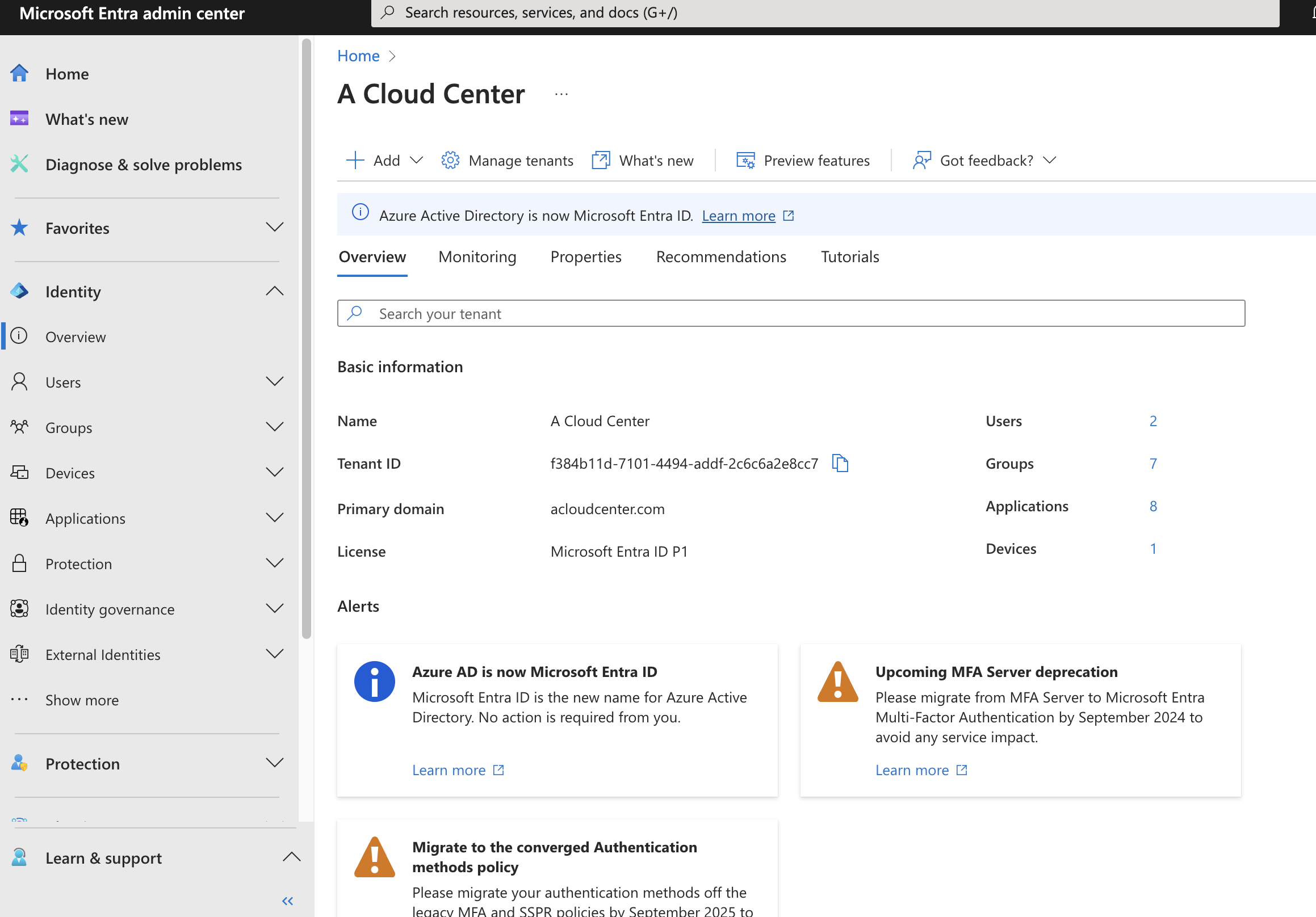
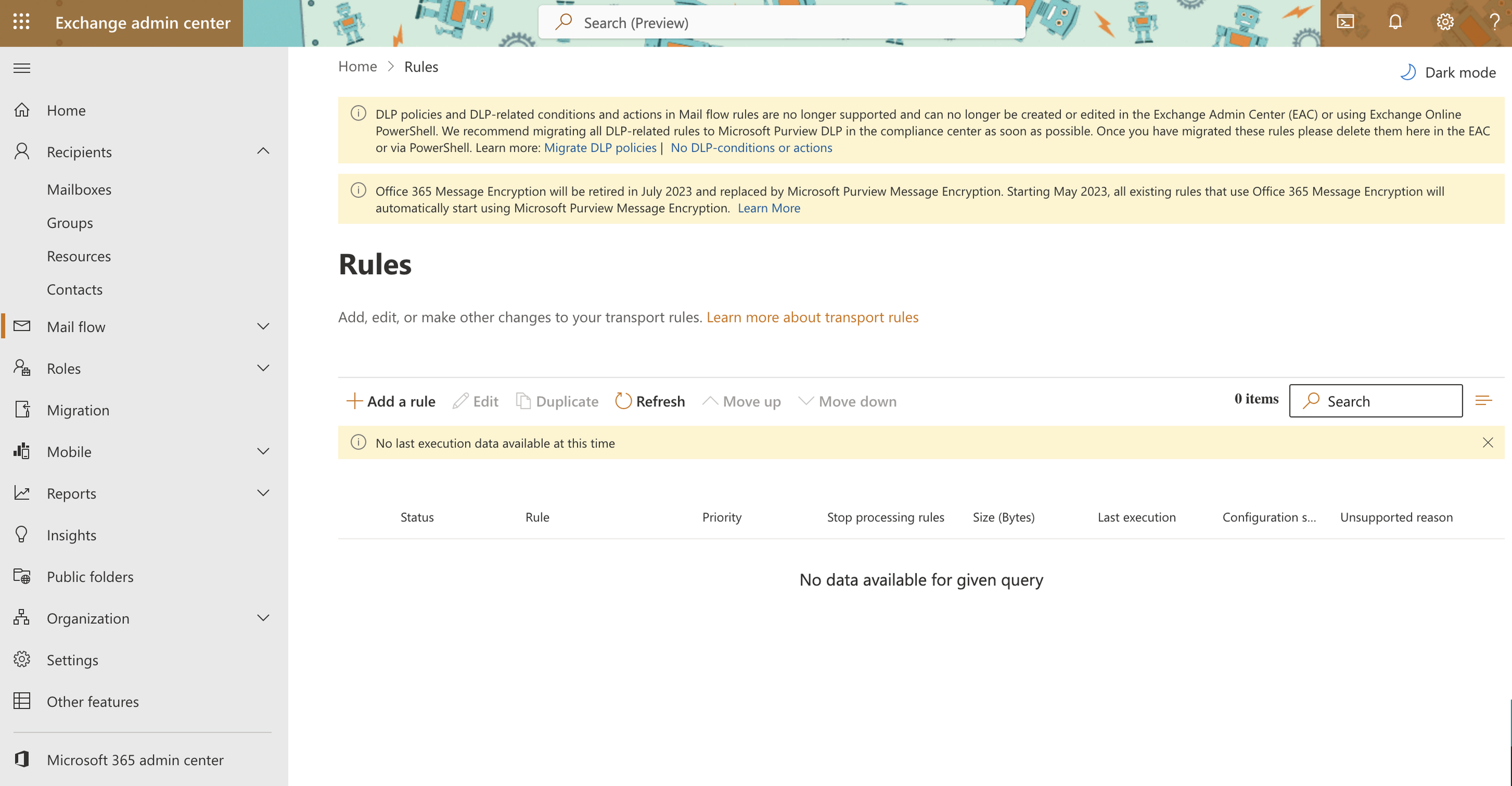
With the SharePoint admin center, you can build out an entire intranet. You can also use the Exchange admin center to explore the various tools Exchange admins have at their fingertips. You can see just how valuable a $6-a-month investment can be.
Alright, enough lecturing—let's get to it! If you navigate to microsoft.com using this link, you'll find the various subscription tiers and the features each tier provides. I know everyone loves a good free trial, and fortunately, Microsoft has us covered! You can try each tier for a full month before deciding whether to continue with a paid subscription. Keep in mind, however, that the trial only applies to one tier; you can't trial each tier for 30 days—nice try.
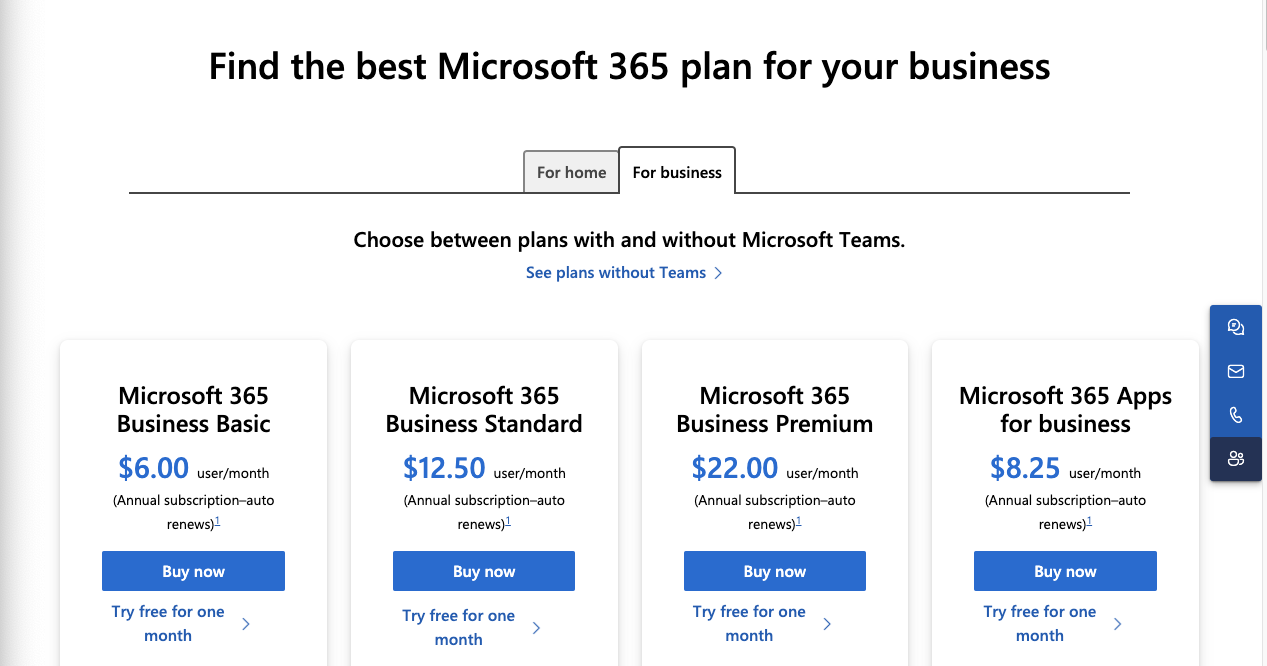
I recommend starting with the highest version to explore everything Office 365 offers, and then downgrading if needed before the trial renewal. This approach gives you full access to the suite, allowing you to decide what you truly need for your lab environment, with support for up to 25 users.
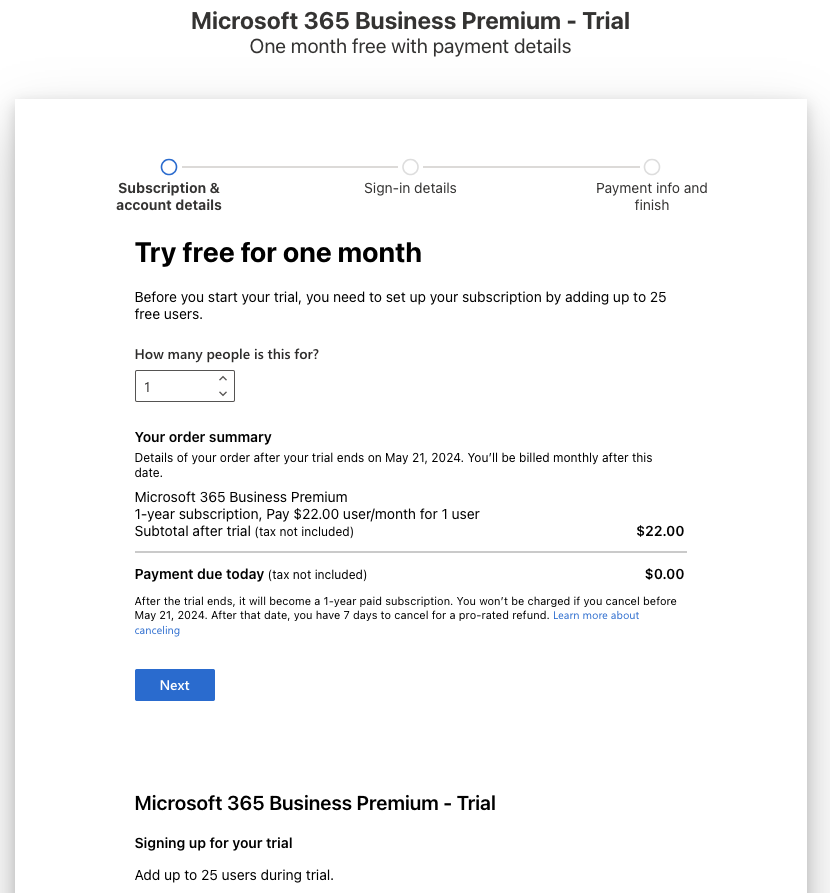
You'll notice the Business Basic plan is only $6.00 per month per user if paid annually, or $7.20 per month if paid monthly. Consider it an investment in your education and learning. Subscribe to at least one account, and you'll thank me later.
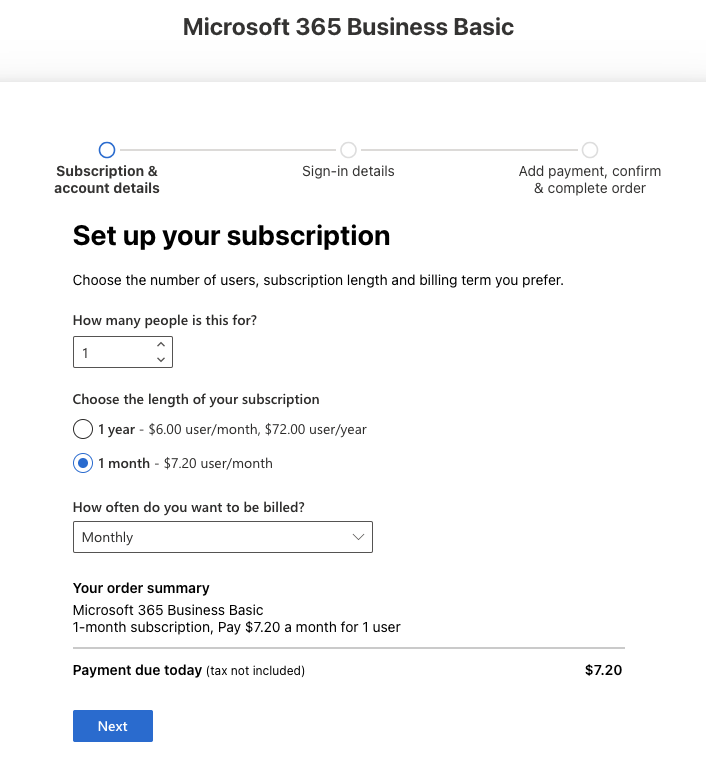
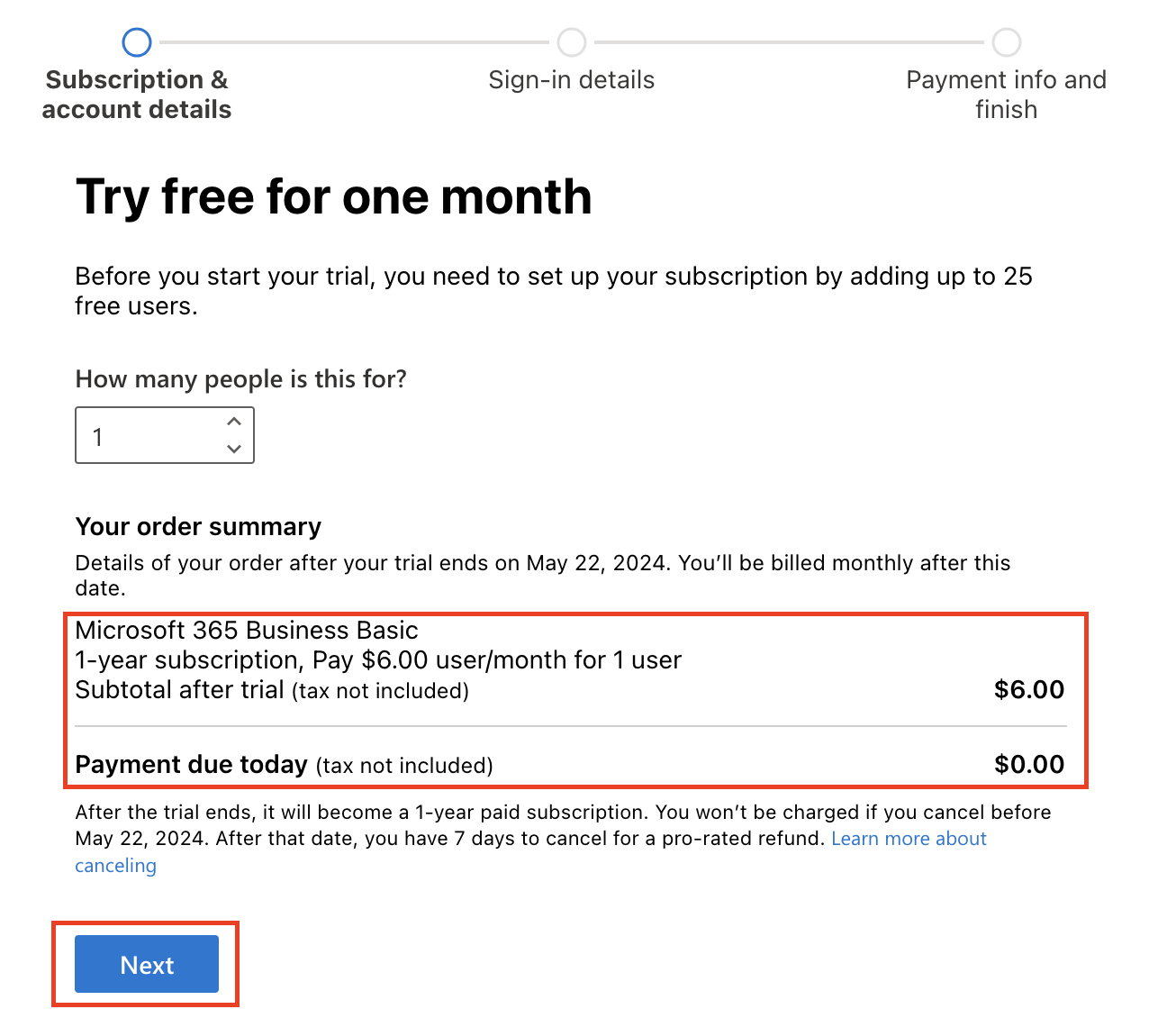
After you choose your subscription plan, the wizard will walk you through setting up the trial. There’s a great video showing step by step here. You can also follow their sign up steps here. Part of the sign up process is creating an initial user account and company name. Take some time to get creative and use a company name that you can use for all your other lab accounts. We can then also use this company to buy and integrate your own custom domain. This step is optional, but again highly recommended.
Congratulations, you have your very own Microsoft Office 365 tenant! You can now log in to the admin portals and start exploring all the various services it offers. Head over to admin.microsoft.com and sign in with your newly created account. Check out all these cool admin features at your fingertips!
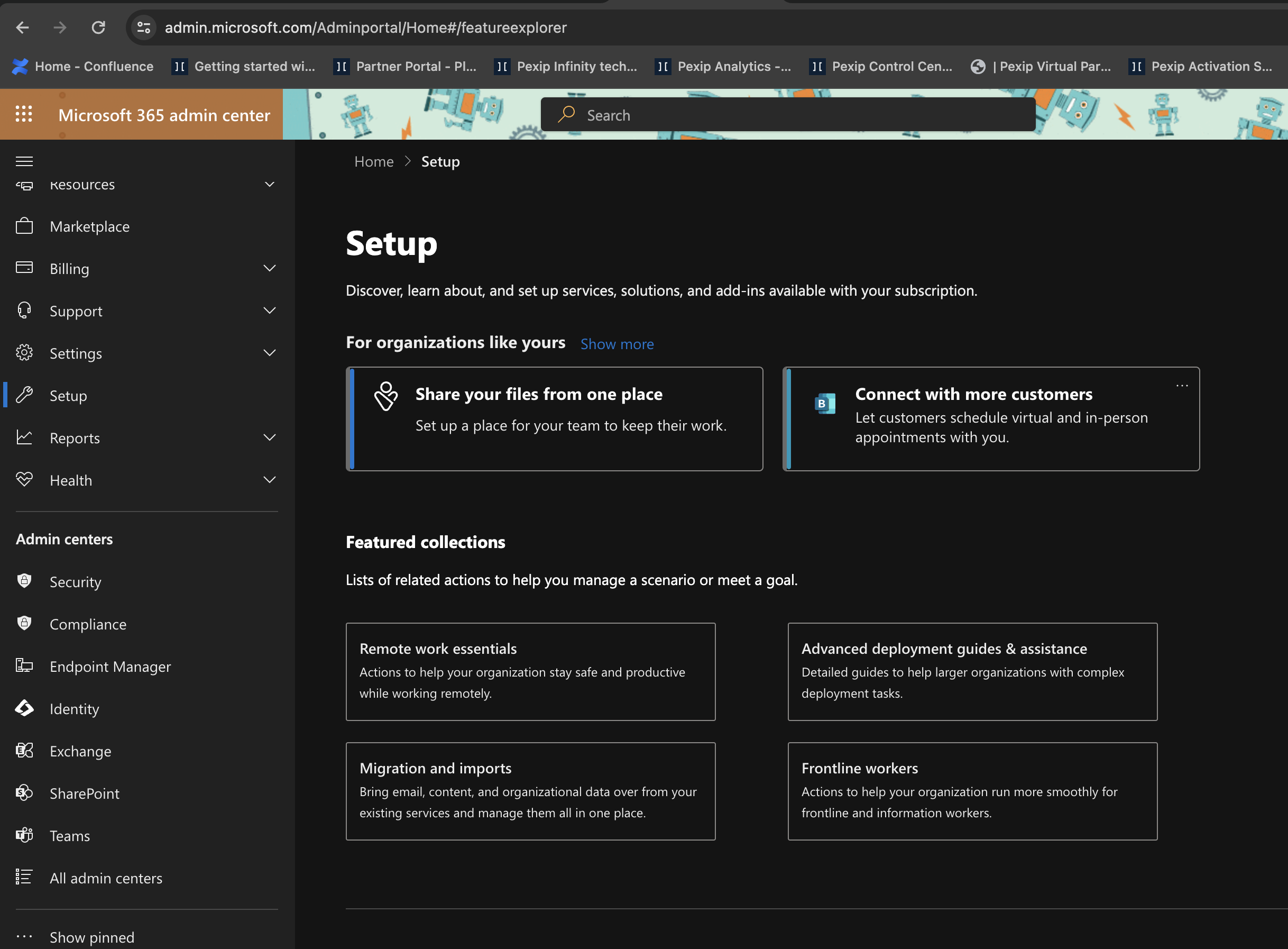
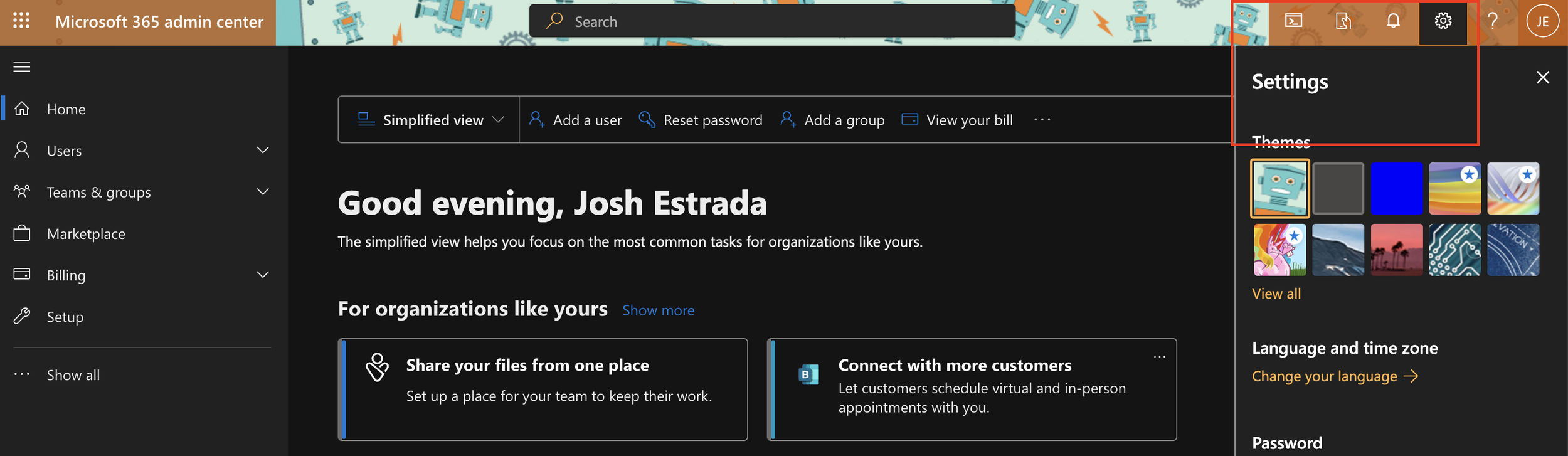
First things first, let's change our theme to fit our new company. I love sci-fi and robots, so we'll pick the robot theme. Navigate to the upper right-hand corner to find the gear icon, where you'll find the themes. Later, you can customize this even further with your own logos and backgrounds, but that's for another tutorial.
I encourage you to start exploring Entra ID, Teams, Exchange, and the various admin centers. The best part is, there's no one looking over your shoulder, nothing to break that could affect a production environment, and no pressure. That's the beauty of a lab environment.
Adding a Custom Domain
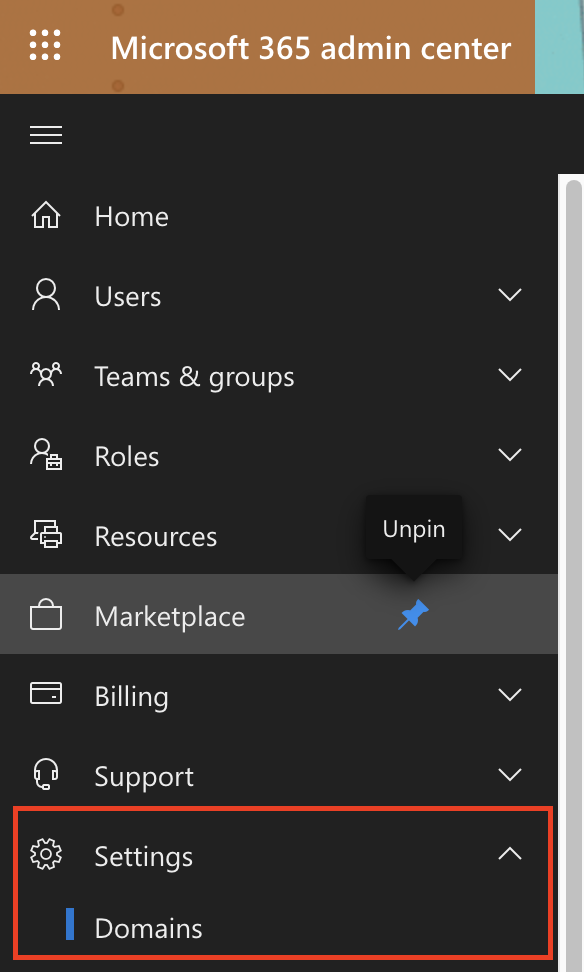
This next step is optional but highly recommended. The very next thing I would do is purchase a custom domain name and link it to your new tenant. Microsoft makes this easy by allowing you to buy the domain from GoDaddy directly from your Office 365 admin center, which then links it to your tenant automatically. Start by navigating to Settings > Domains within the admin center.
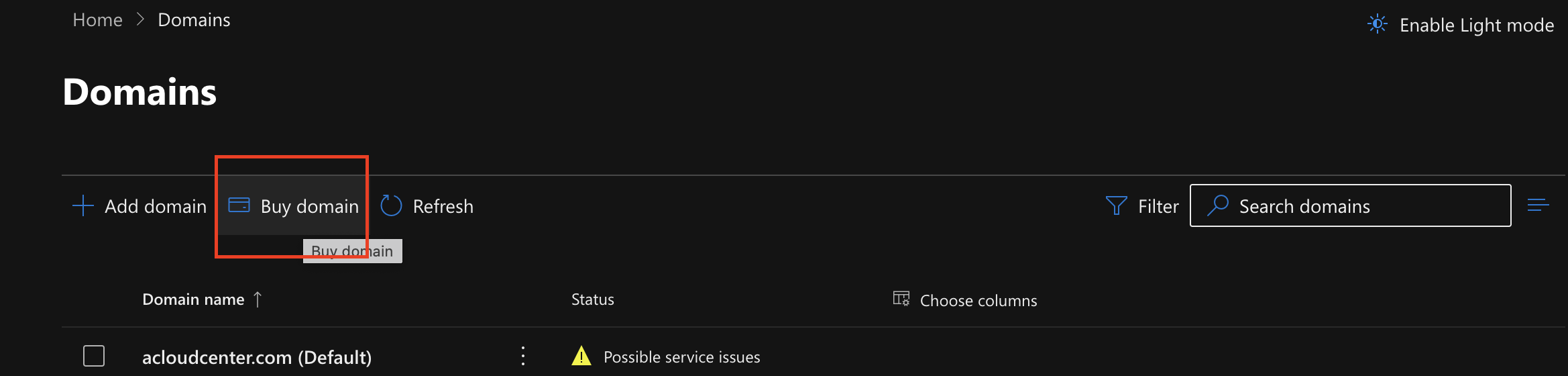
Once there, you'll see the option to add a domain you already own or to purchase one. If you choose to purchase one directly from the admin center, select "Buy Domain." If you already own one, Microsoft provides steps on how to add it here.
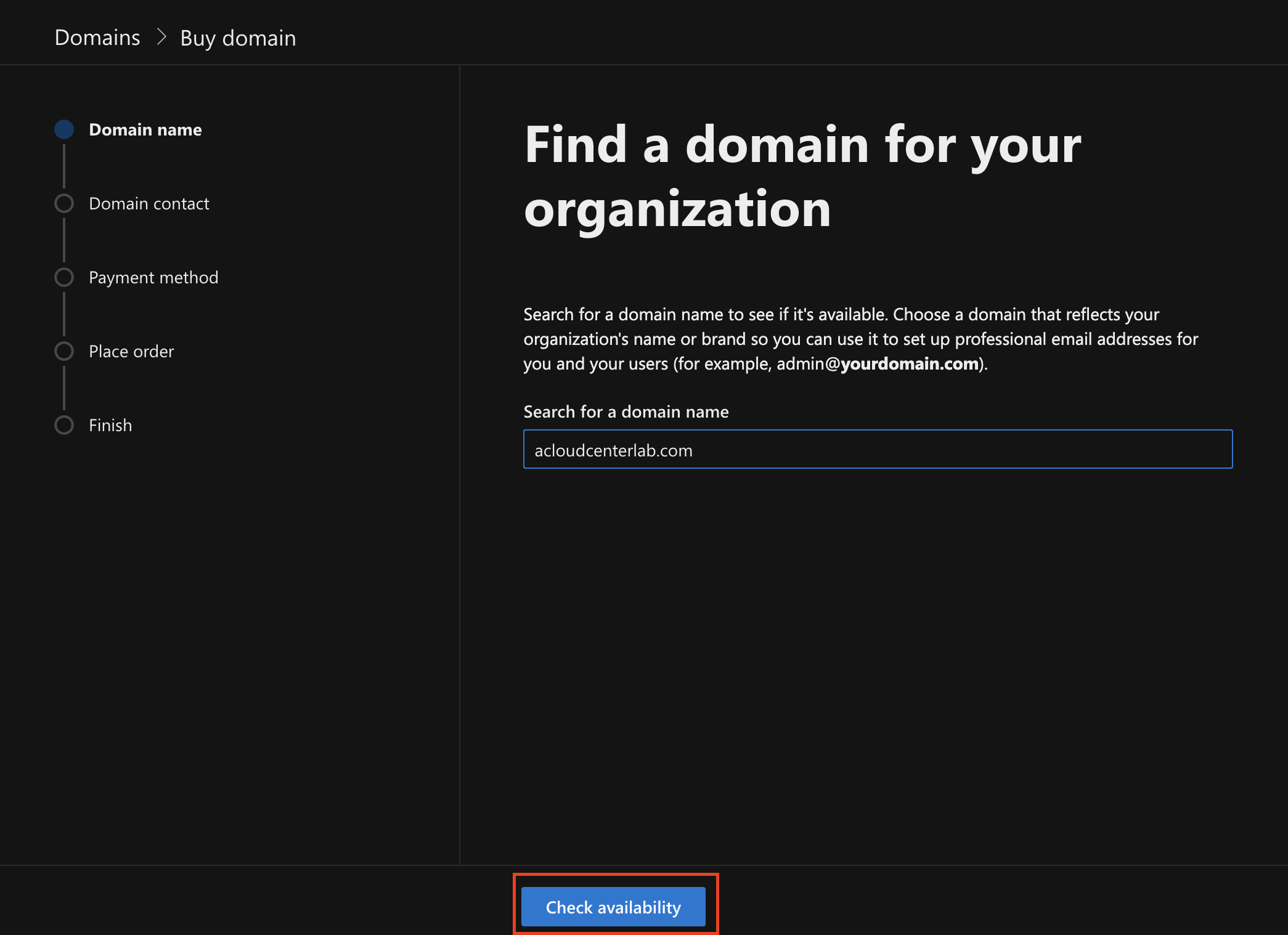
Next, the wizard will guide you through checking domain availability, purchasing it, and then automatically adding it to your tenant by using the Domain Connect service.
Finally, now that your custom domain is added, you can set it as the default, ensuring any users or services that get created will use your customcompany.com domain. You can also change your admin user account to use your new domain.
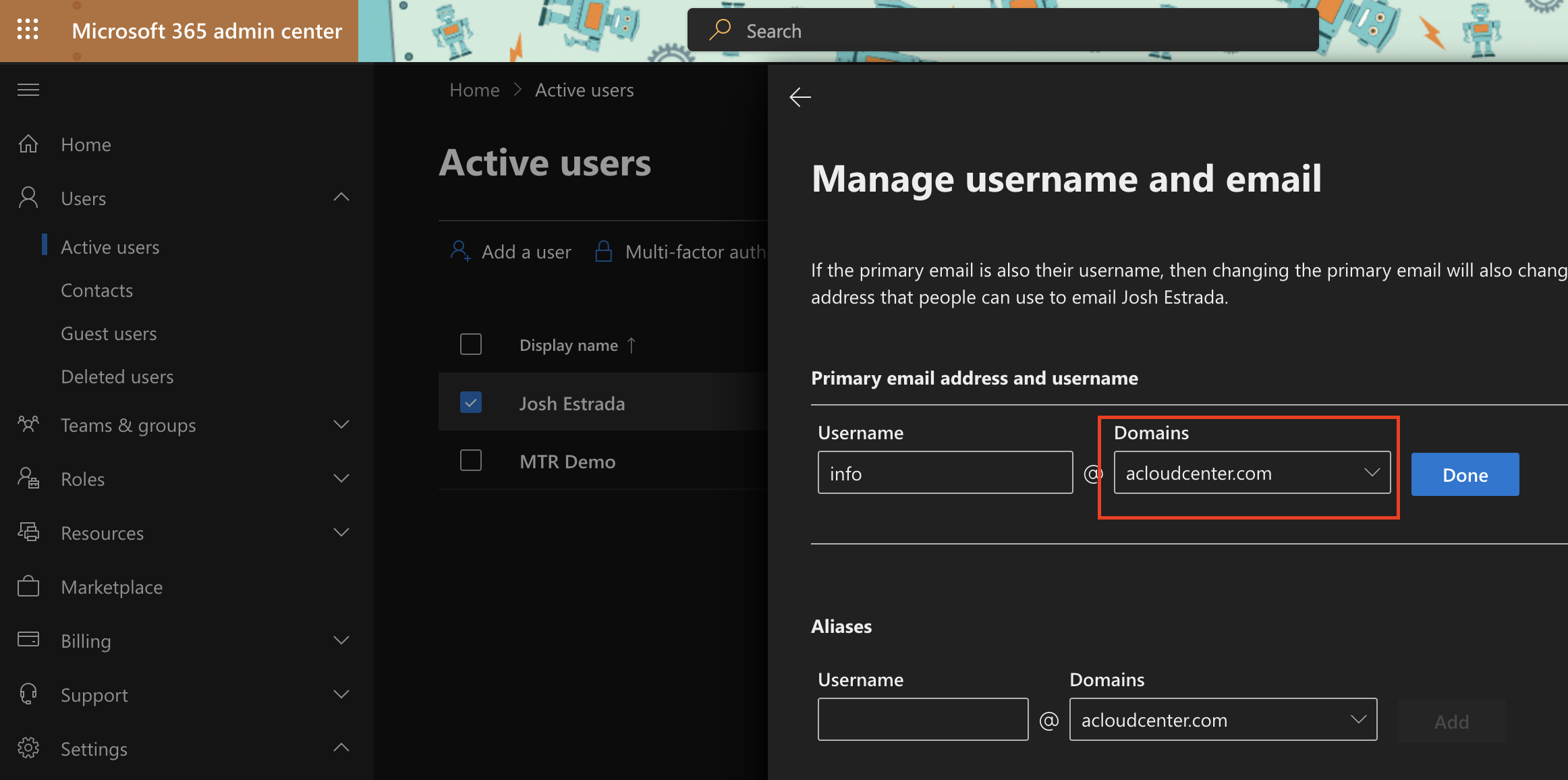
You now have your own custom Office 365 playground! I think you'll find there are huge benefits to being able to test and learn in your own sandbox, and for $6 a month, it's well worth the cost. Now get to exploring!

What Is Cloud Video Interop for Microsoft Teams? (CVI)
So, you’ve finally done it! You and your team have successfully migrated your company’s meeting platform to Microsoft Teams.

So, you’ve finally done it! You and your team have successfully migrated your company’s meeting platform to Microsoft Teams. Your CEO heads into his Executive Boardroom to join his first Teams meeting using his Cisco Room Kit (Drum Roll…). There’s just one problem: How does he dial into the meeting?
If you're familiar with Teams meetings, then you’ll know that the meeting invites include a clickable URL. This URL allows participants to join from their desktop clients, mobile devices, or via the web using WebRTC. Additionally, Microsoft has its own proprietary room systems known as Microsoft Teams Rooms (MTRs), which can join these meetings natively using a web engine. But what if your conference room system isn’t an MTR and instead uses the traditional SIP protocol for placing calls?
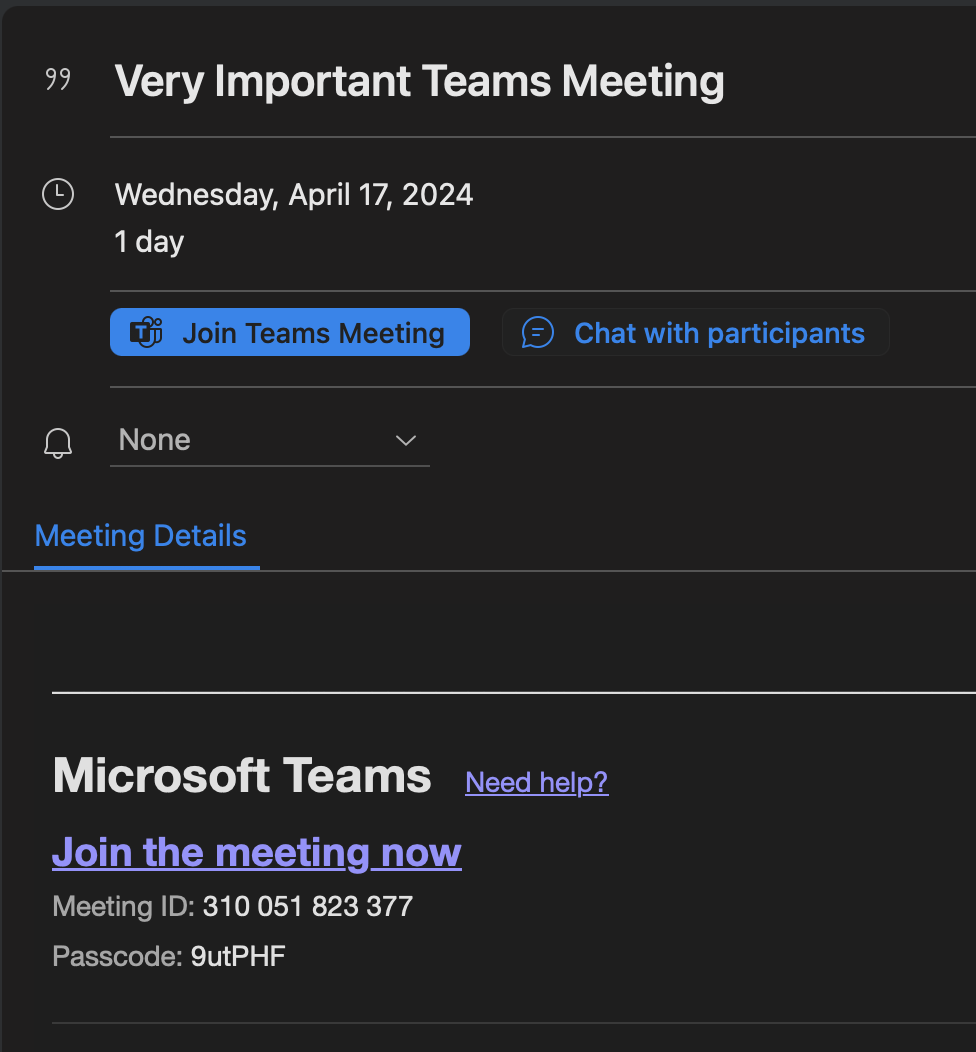
What’s not included in these invites is a video address, or the technical term, a SIP URI, which allows dial-in from SIP-enabled room systems such as your Poly/HP or Cisco units. This is where CVI comes into play. Microsoft has designated third-party partners like Pexip and Cisco to provide this interoperability service, bridging the gap between the Microsoft Teams protocol and the standards-based SIP protocol. This allows your SIP-based conference rooms, such as Cisco and HP/Poly devices, to dial in as native clients. These partners build a gateway solution that acts as a sort of 'translator' between Teams and the room systems, taking advantage of the Microsoft Teams meeting APIs.
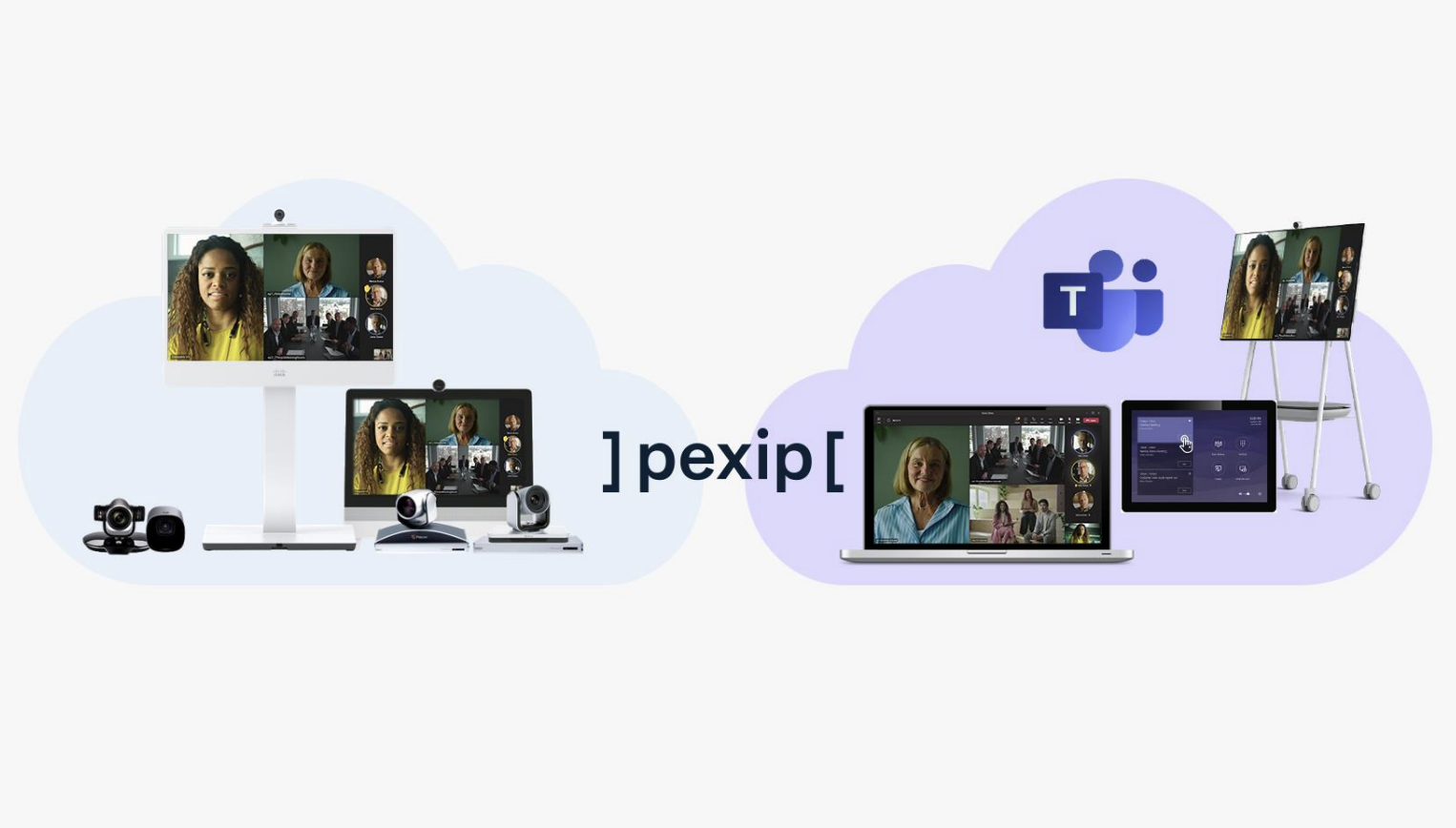
Confused yet? Don’t worry; let's explore what a Teams invite looks like with a CVI interop service, and then delve into the details of what joining a call actually entails. Think of the CVI service as adding an additional way to join the Teams meeting. Just like an admin can include telephone numbers in your Teams invite, they can also add CVI information. It’s important to note that CVI is a service that allows these standard-based room systems to dial in to a Teams meeting. It is not designed for dialing a Teams client directly or for a Teams Meeting to dial out to the room.
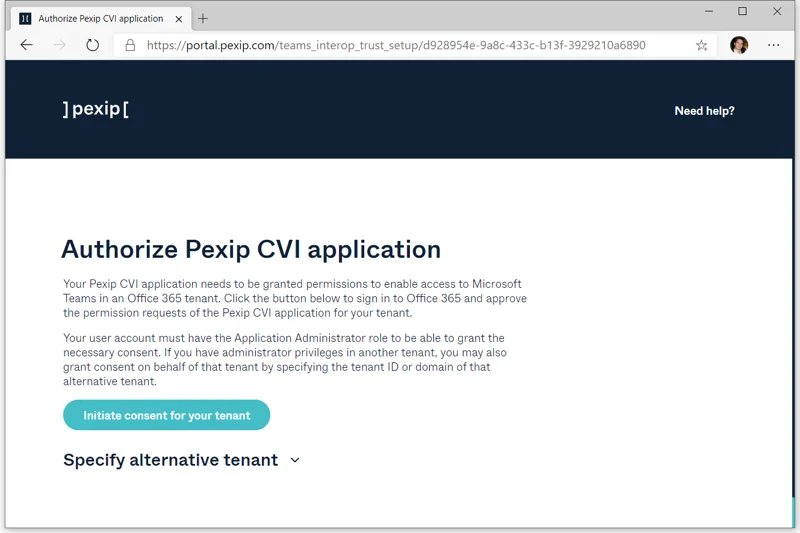
Activating and configuring CVI for your users is a fairly straightforward process, which I’ll cover in a different post. For this article, I wanted to keep it less technical. Just know that once you configure the service, you can apply it as a policy to whoever you want to have this capability. This policy can be applied globally to all users within your Microsoft tenant or by UPN.
Now, let's take a look at what a Teams invite looks like after CVI has been configured:
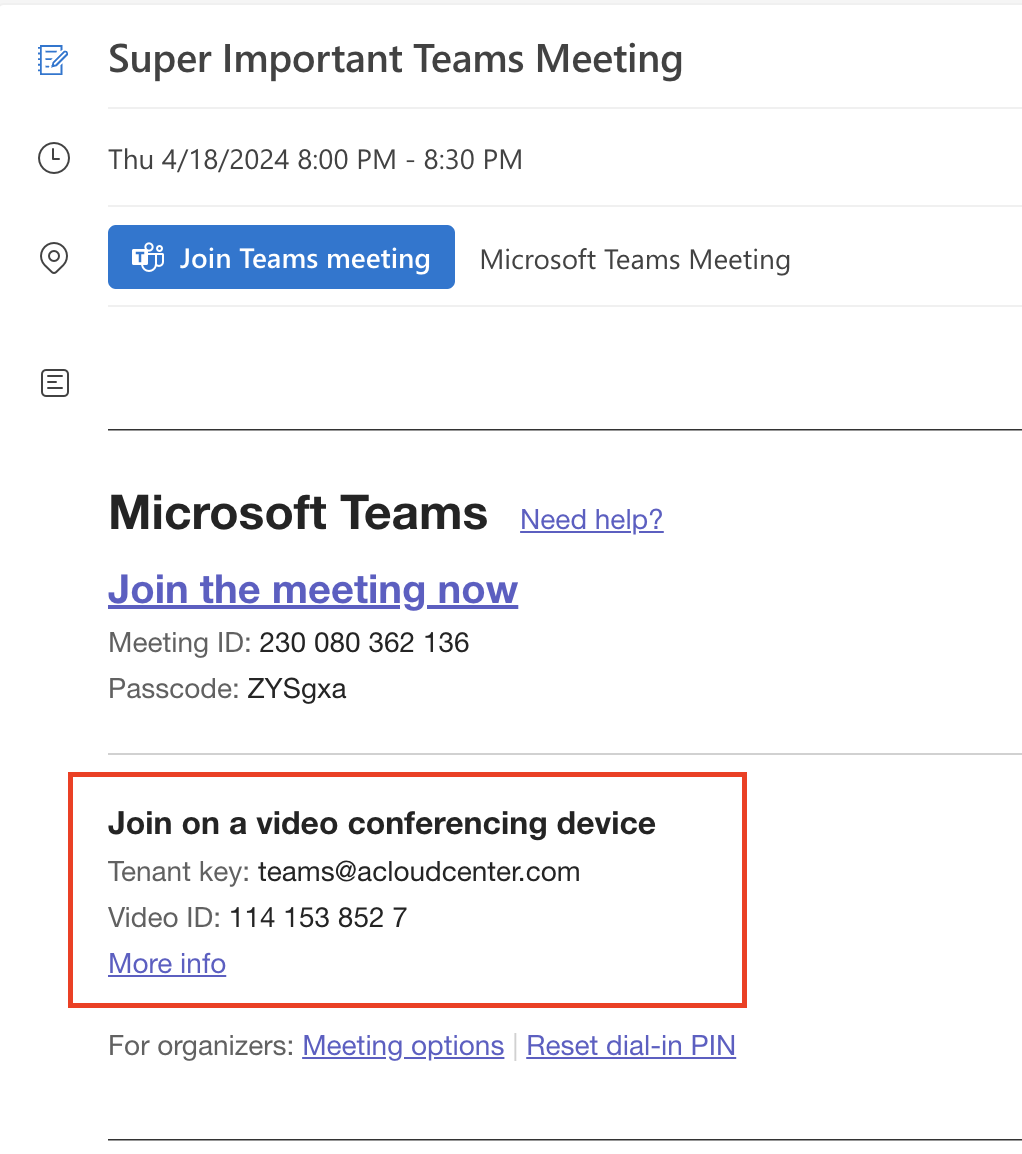
As you can see, our Teams meeting now includes the 'Join on a video conferencing device' field with an additional Video ID number. Your standards-based room systems now have an address to dial to join the Teams meeting natively! From the room system, users can now dial into the meeting in a few different ways.
First, they can dial in using teams@acloudcenter.com. This will drop them into a virtual lobby where a voice prompt will then ask for the meeting ID. After entering the meeting ID, the user will be joined into the Teams meeting.

Second, the user can dial 1141538527@acloudcenter.com. This directly dials into the meeting, bypassing the virtual lobby. Lastly, if the room system is set up with a calendaring service and can read the CVI details from the invite, the user can simply forward the invite to the conference room’s resource address and press the 'Join' button that appears on the room’s touch panel or on-screen display.

Once the room system is joined into the meeting, they will see the other Teams participants and users joined in through the Teams client, web browser, or mobile app will also see the conference room.
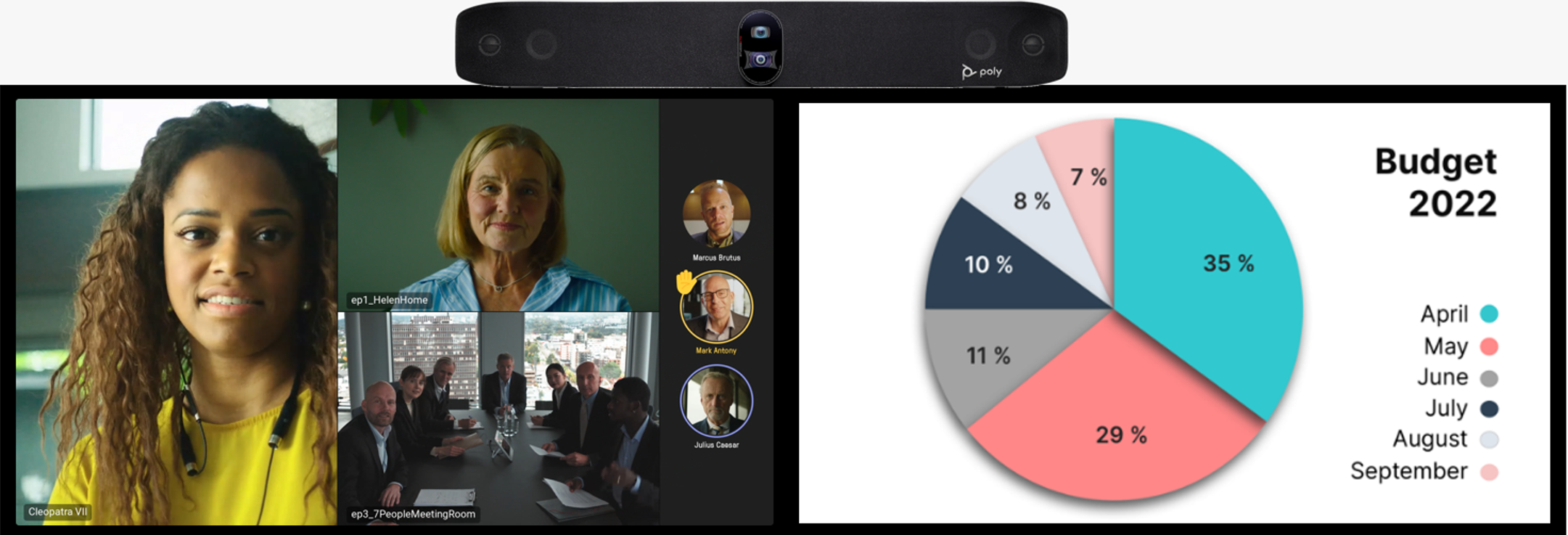

One of the significant benefits of CVI is that it allows you to retain the full functionality of the room system hardware, such as single or dual monitor setups, sending and receiving content, and ensuring a consistent user experience. More importantly, it keeps your room system agnostic until you can fully migrate to Microsoft Teams Rooms.
Now that you know what CVI is and what it does, be sure to check out our article and videos on how to set it up and use it!

Setting Up A Microsoft Teams Room: A Complete Guide
Setting up a Microsoft Teams Room doesn’t need to be hard. So let’s walk through each step together.
It all begins with an idea. Maybe you want to launch a business. Maybe you want to turn a hobby into something more. Or maybe you have a creative project to share with the world. Whatever it is, the way you tell your story online can make all the difference.
Don’t worry about sounding professional. Sound like you. There are over 1.5 billion websites out there, but your story is what’s going to separate this one from the rest. If you read the words back and don’t hear your own voice in your head, that’s a good sign you still have more work to do.
Be clear, be confident and don’t overthink it. The beauty of your story is that it’s going to continue to evolve and your site can evolve with it. Your goal should be to make it feel right for right now. Later will take care of itself. It always does.