
What Is Cloud Video Interop for Microsoft Teams? (CVI)
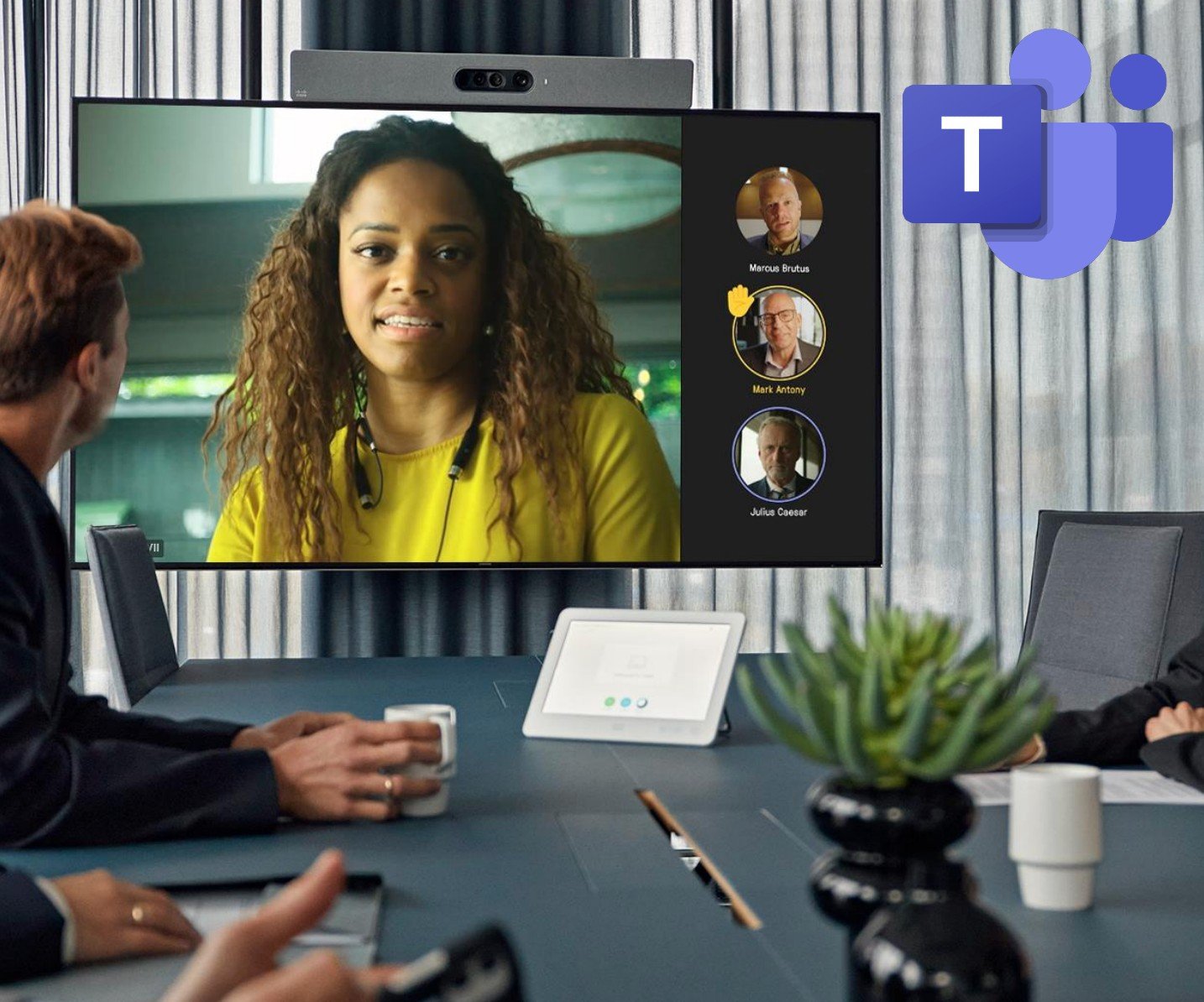
So, you’ve finally done it! You and your team have successfully migrated your company’s meeting platform to Microsoft Teams. Your CEO heads into his Executive Boardroom to join his first Teams meeting using his Cisco Room Kit (Drum Roll…). There’s just one problem: How does he dial into the meeting?
If you're familiar with Teams meetings, then you’ll know that the meeting invites include a clickable URL. This URL allows participants to join from their desktop clients, mobile devices, or via the web using WebRTC. Additionally, Microsoft has its own proprietary room systems known as Microsoft Teams Rooms (MTRs), which can join these meetings natively using a web engine. But what if your conference room system isn’t an MTR and instead uses the traditional SIP protocol for placing calls?
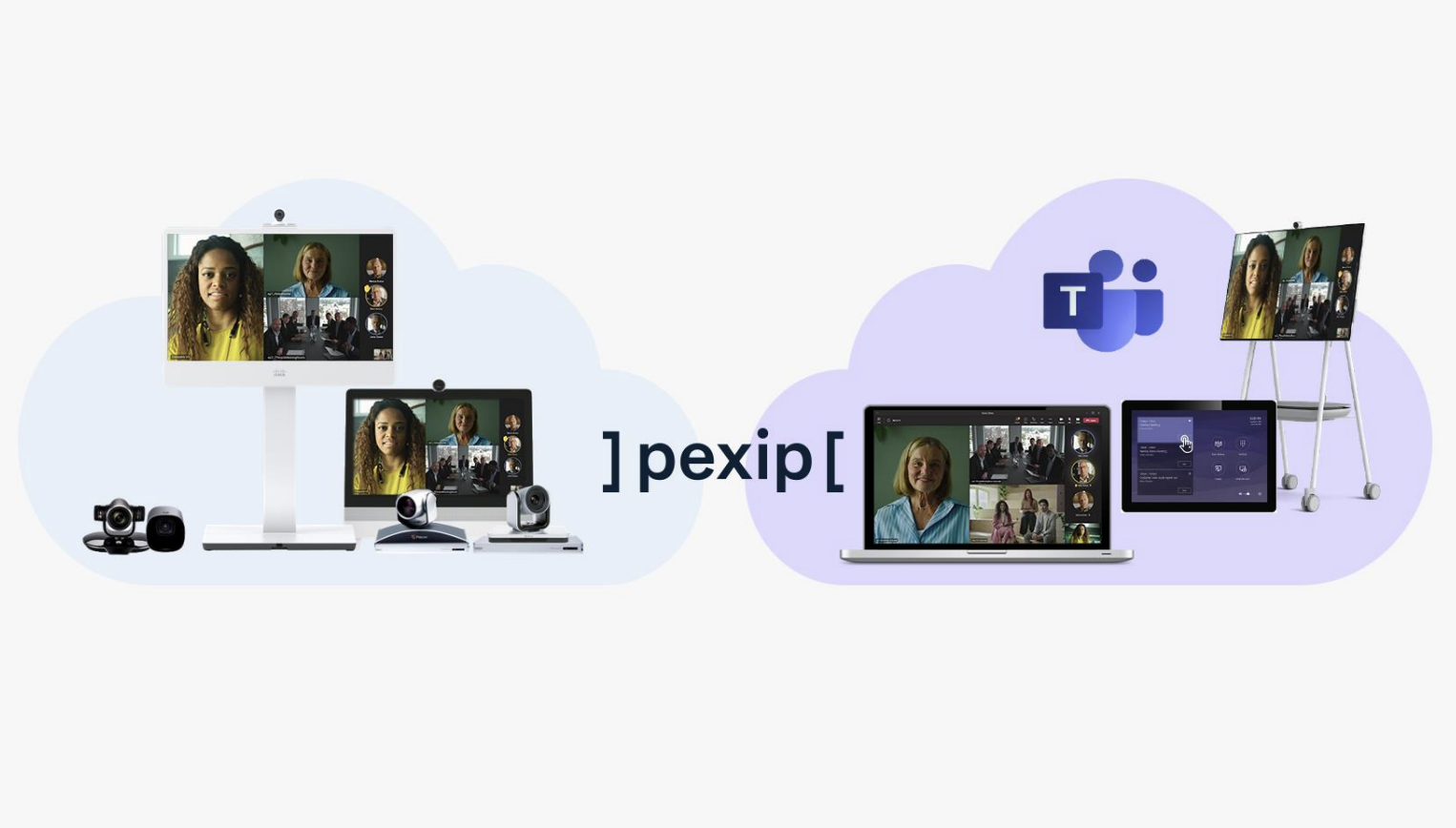
What’s not included in these invites is a video address, or the technical term, a SIP URI, which allows dial-in from SIP-enabled room systems such as your Poly/HP or Cisco units. This is where CVI comes into play. Microsoft has designated third-party partners like Pexip and Cisco to provide this interoperability service, bridging the gap between the Microsoft Teams protocol and the standards-based SIP protocol. This allows your SIP-based conference rooms, such as Cisco and HP/Poly devices, to dial in as native clients. These partners build a gateway solution that acts as a sort of 'translator' between Teams and the room systems, taking advantage of the Microsoft Teams meeting APIs.
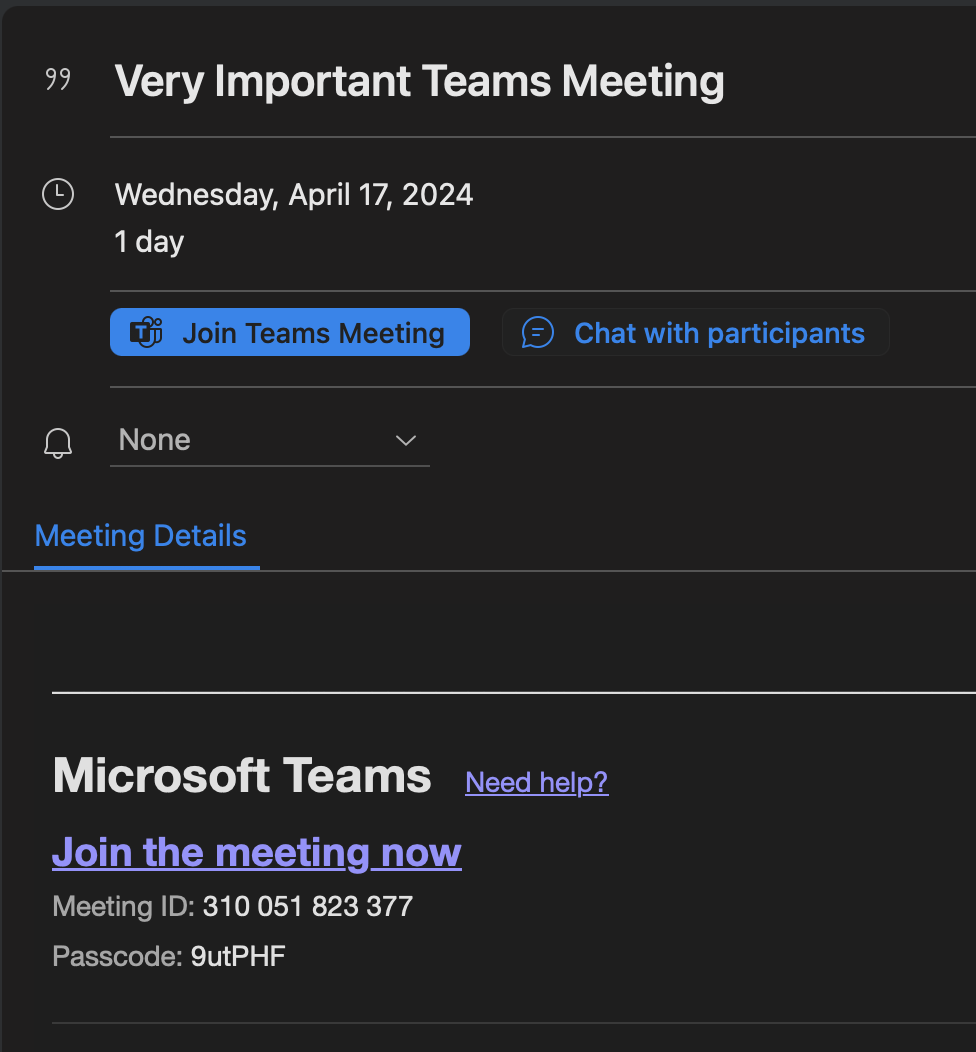
Confused yet? Don’t worry; let's explore what a Teams invite looks like with a CVI interop service, and then delve into the details of what joining a call actually entails. Think of the CVI service as adding an additional way to join the Teams meeting. Just like an admin can include telephone numbers in your Teams invite, they can also add CVI information. It’s important to note that CVI is a service that allows these standard-based room systems to dial in to a Teams meeting. It is not designed for dialing a Teams client directly or for a Teams Meeting to dial out to the room.
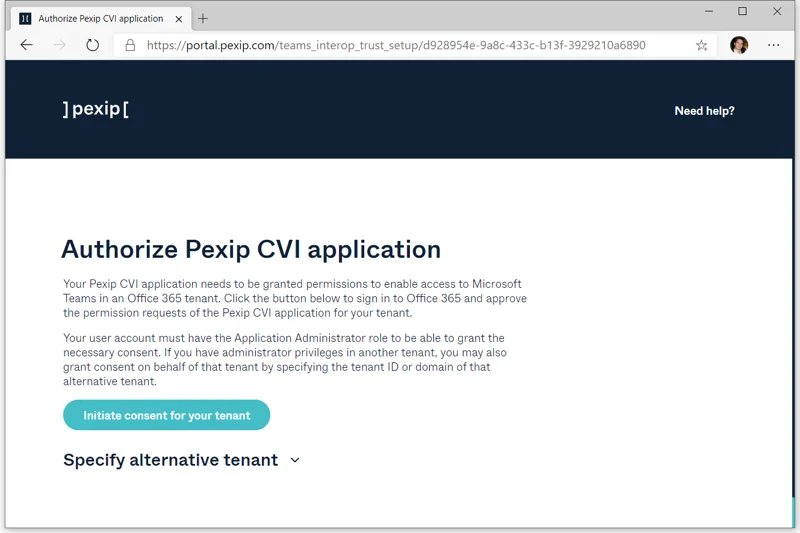
Activating and configuring CVI for your users is a fairly straightforward process, which I’ll cover in a different post. For this article, I wanted to keep it less technical. Just know that once you configure the service, you can apply it as a policy to whoever you want to have this capability. This policy can be applied globally to all users within your Microsoft tenant or by UPN.
Now, let's take a look at what a Teams invite looks like after CVI has been configured:
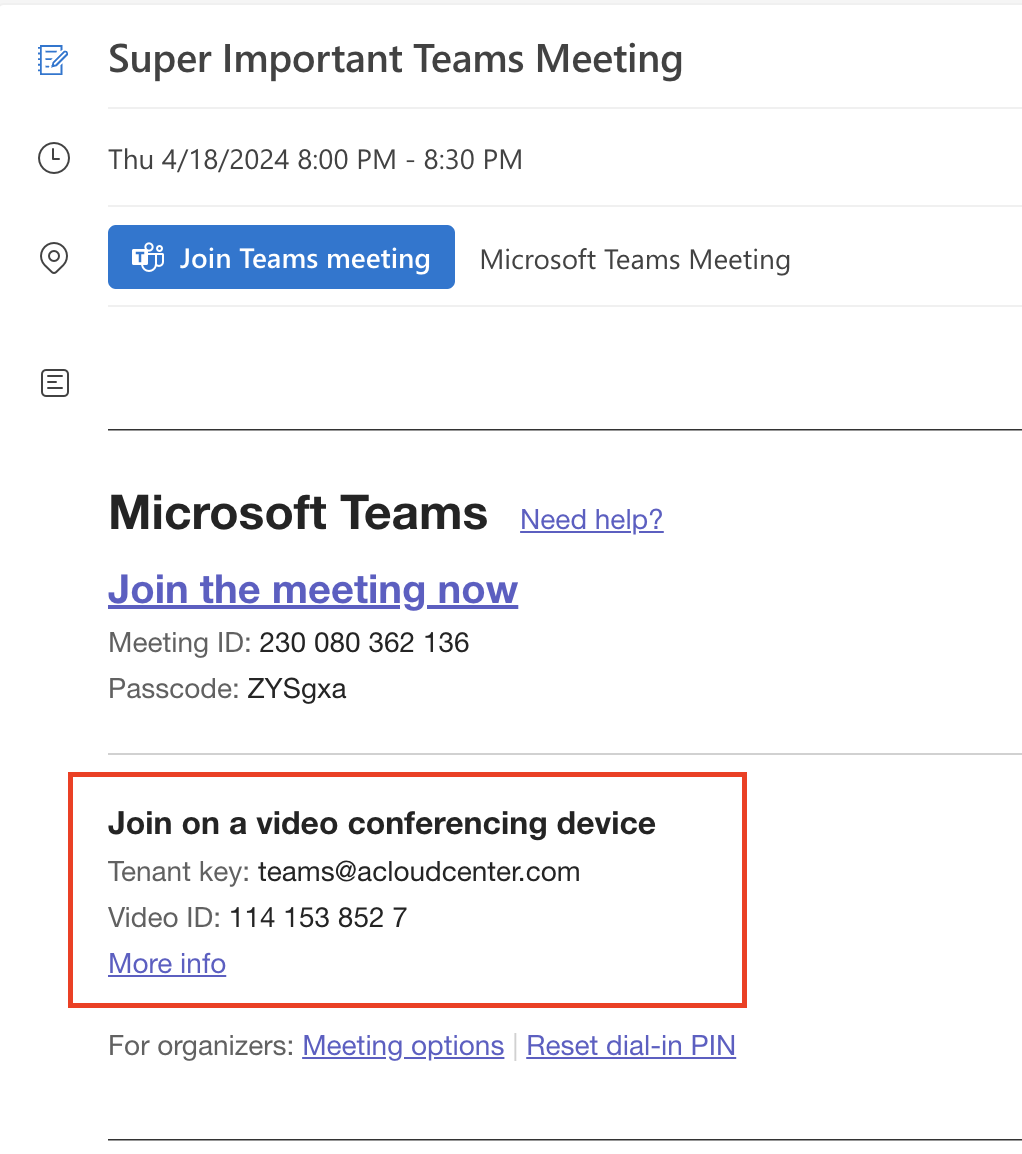
As you can see, our Teams meeting now includes the 'Join on a video conferencing device' field with an additional Video ID number. Your standards-based room systems now have an address to dial to join the Teams meeting natively! From the room system, users can now dial into the meeting in a few different ways.
First, they can dial in using teams@acloudcenter.com. This will drop them into a virtual lobby where a voice prompt will then ask for the meeting ID. After entering the meeting ID, the user will be joined into the Teams meeting.
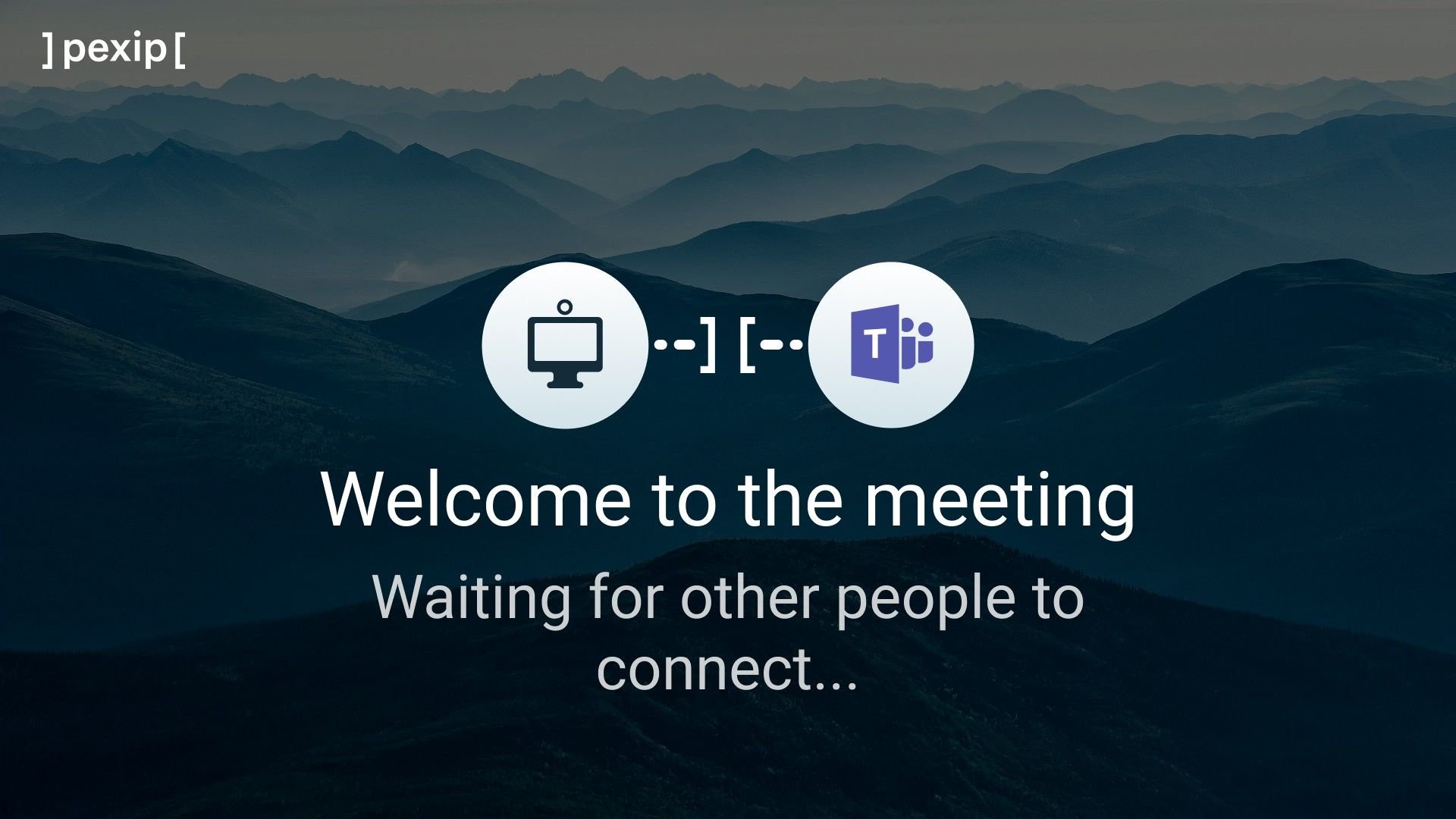
Second, the user can dial 1141538527@acloudcenter.com. This directly dials into the meeting, bypassing the virtual lobby. Lastly, if the room system is set up with a calendaring service and can read the CVI details from the invite, the user can simply forward the invite to the conference room’s resource address and press the 'Join' button that appears on the room’s touch panel or on-screen display.

Once the room system is joined into the meeting, they will see the other Teams participants and users joined in through the Teams client, web browser, or mobile app will also see the conference room.
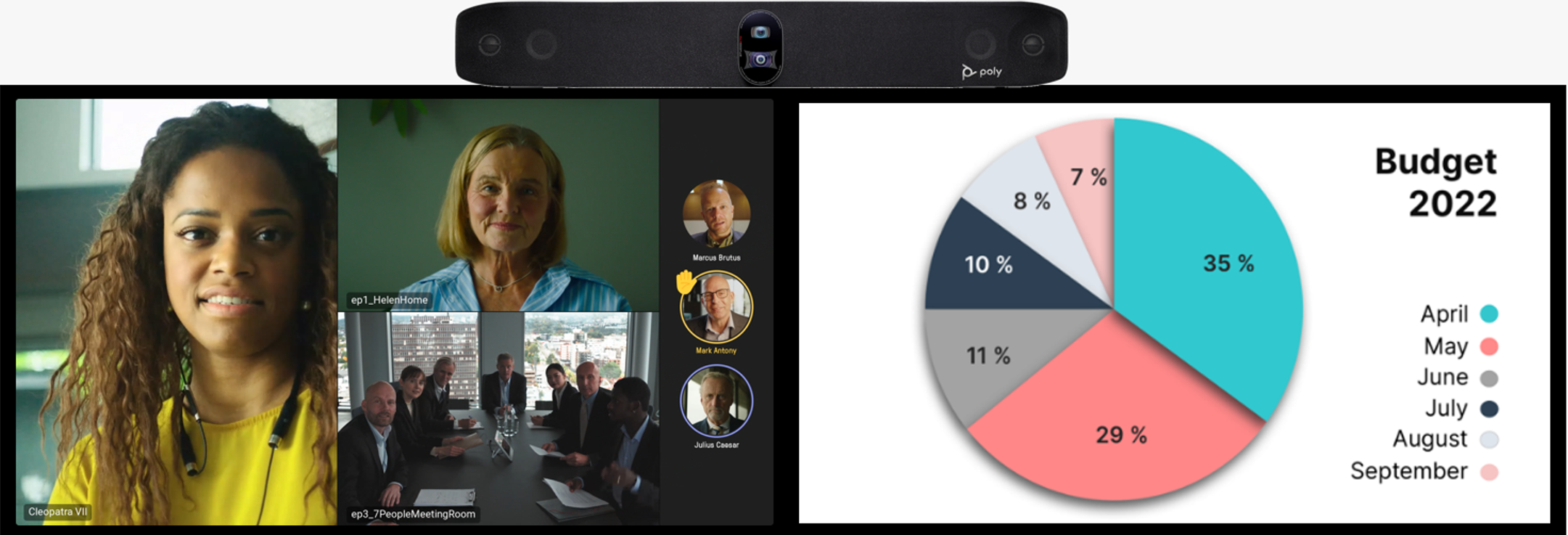

One of the significant benefits of CVI is that it allows you to retain the full functionality of the room system hardware, such as single or dual monitor setups, sending and receiving content, and ensuring a consistent user experience. More importantly, it keeps your room system agnostic until you can fully migrate to Microsoft Teams Rooms.
Now that you know what CVI is and what it does, be sure to check out our article and videos on how to set it up and use it!
